
Why a listing title is not always enough
Random-pull shows can create many sales under similar or generic listing names. The host remembers the reveal in the moment, but the person packing later may only see a name that could describe several products. That is where sorting turns into a detective project.
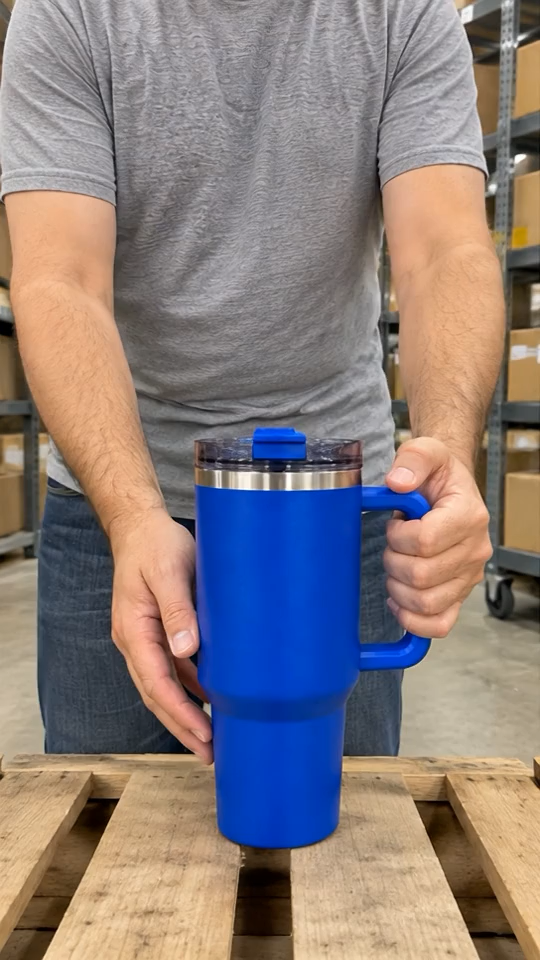
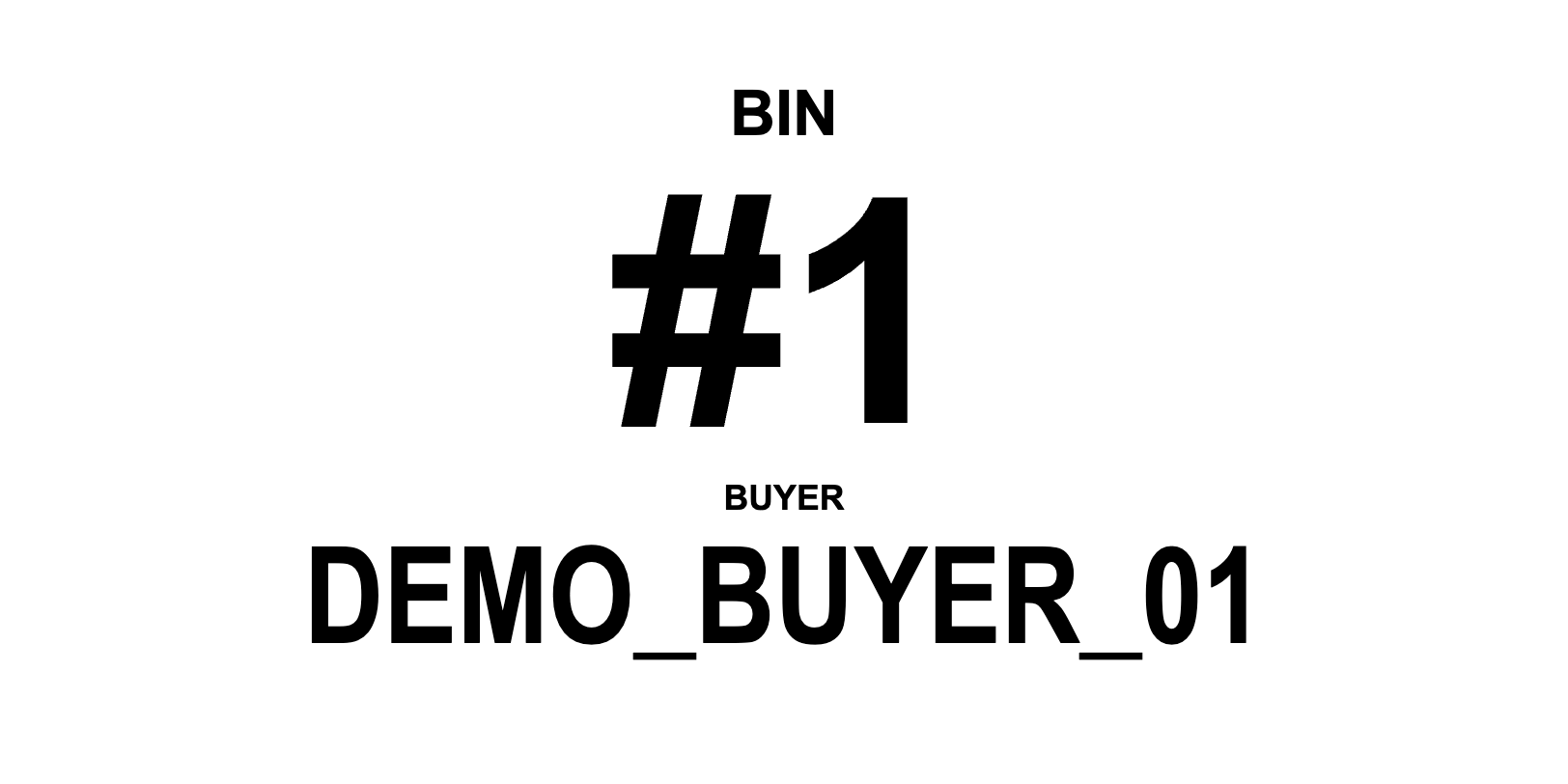
A visual reference gives you another way to identify the physical item. Instead of relying only on memory or scrubbing through footage, you can compare the product in your hand with the reference attached to its sale record. Keep the buyer and BIN alongside that image so the identification also has a destination.
SHOWWHAT’s Auto Pull Capture is designed for this handoff. It captures a product frame from the show and queues it for the winning sale. It is not a tool that recognizes every product from video or determines the contents of an unopened item.
Get the timing right: product first, auction start second

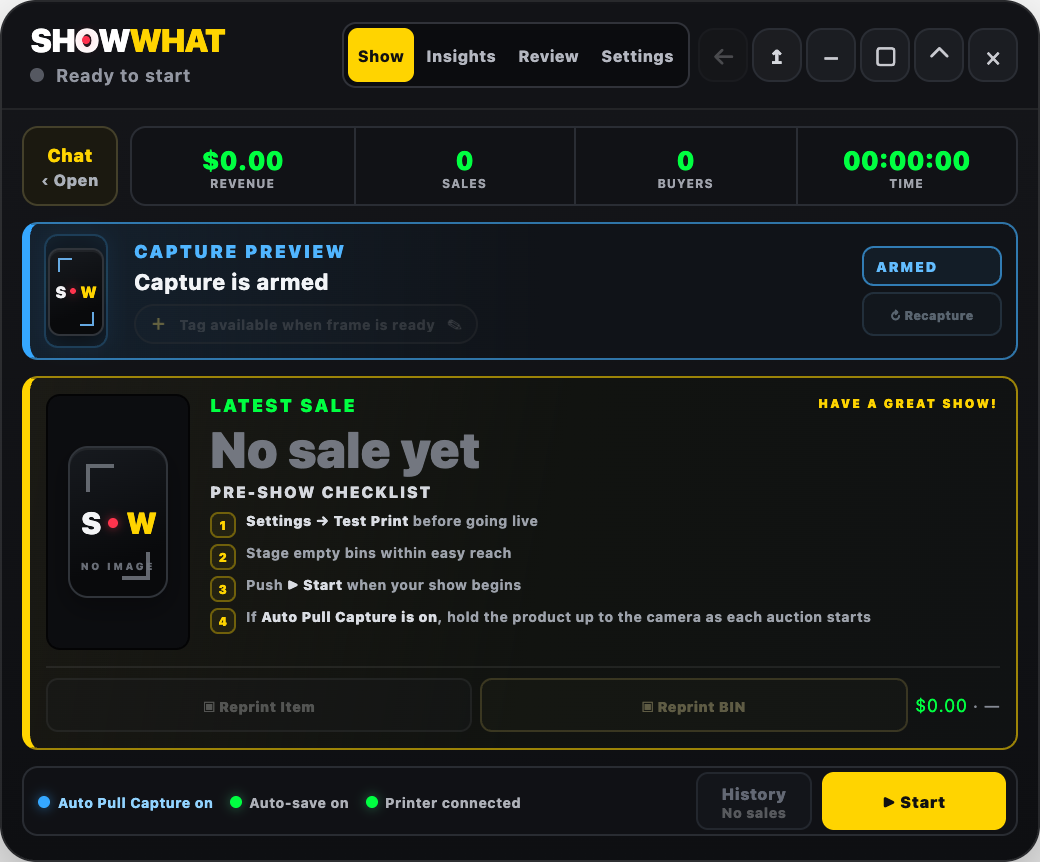
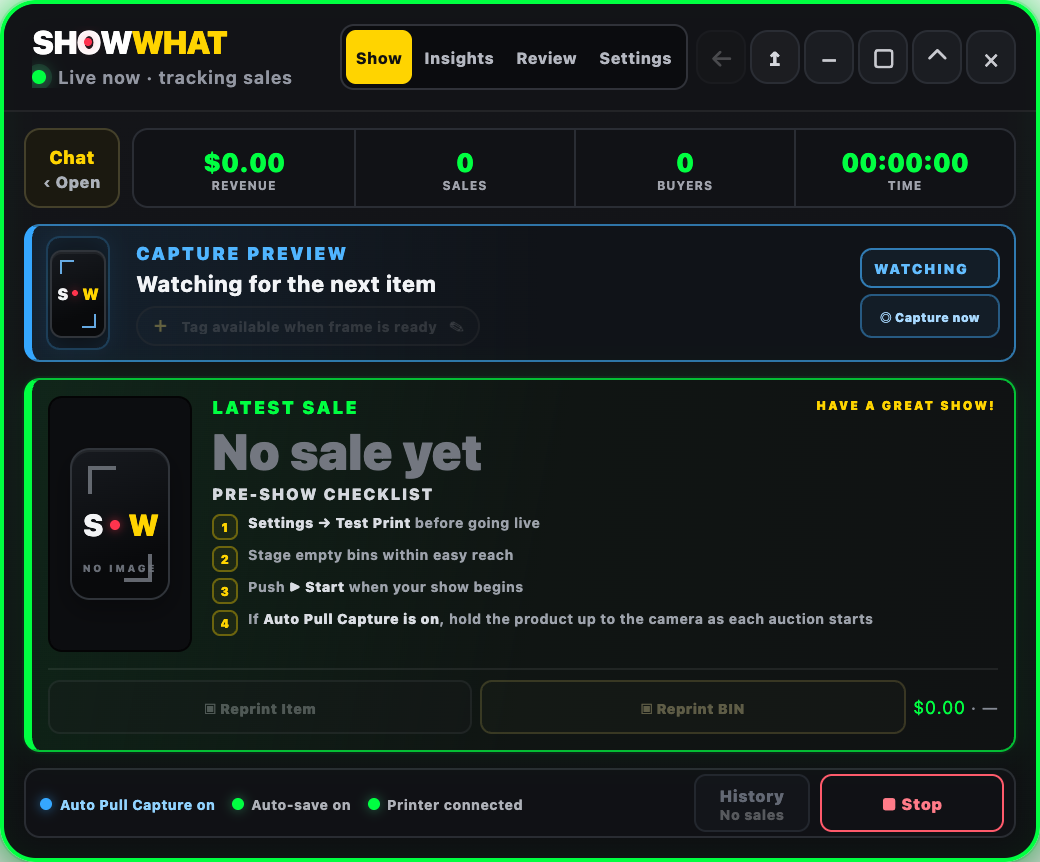
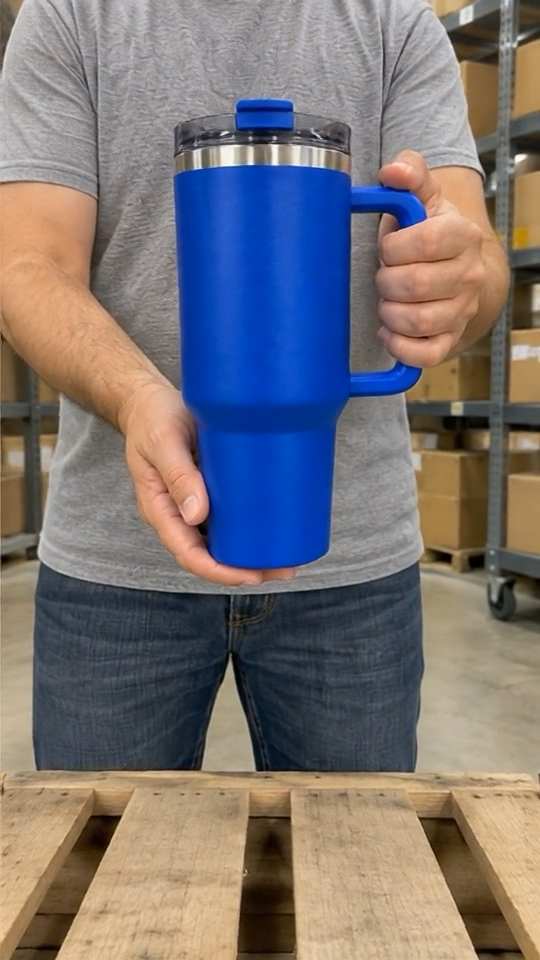
Enable Auto Pull Capture in SHOWWHAT and start SHOWWHAT recording when your show begins. Hold the product clearly in the camera view before starting the auction. The automatic frame is taken at the start of the item’s auction—not at the end after a reveal.
That distinction matters. If the camera shows an empty table at auction start, the automatic frame cannot show a product that appears later. If your format reveals the item after the auction has already started, use the manual backup while the item is active and visible. A reveal after the sale needs an additional verified reference; do not assume the start frame contains it.
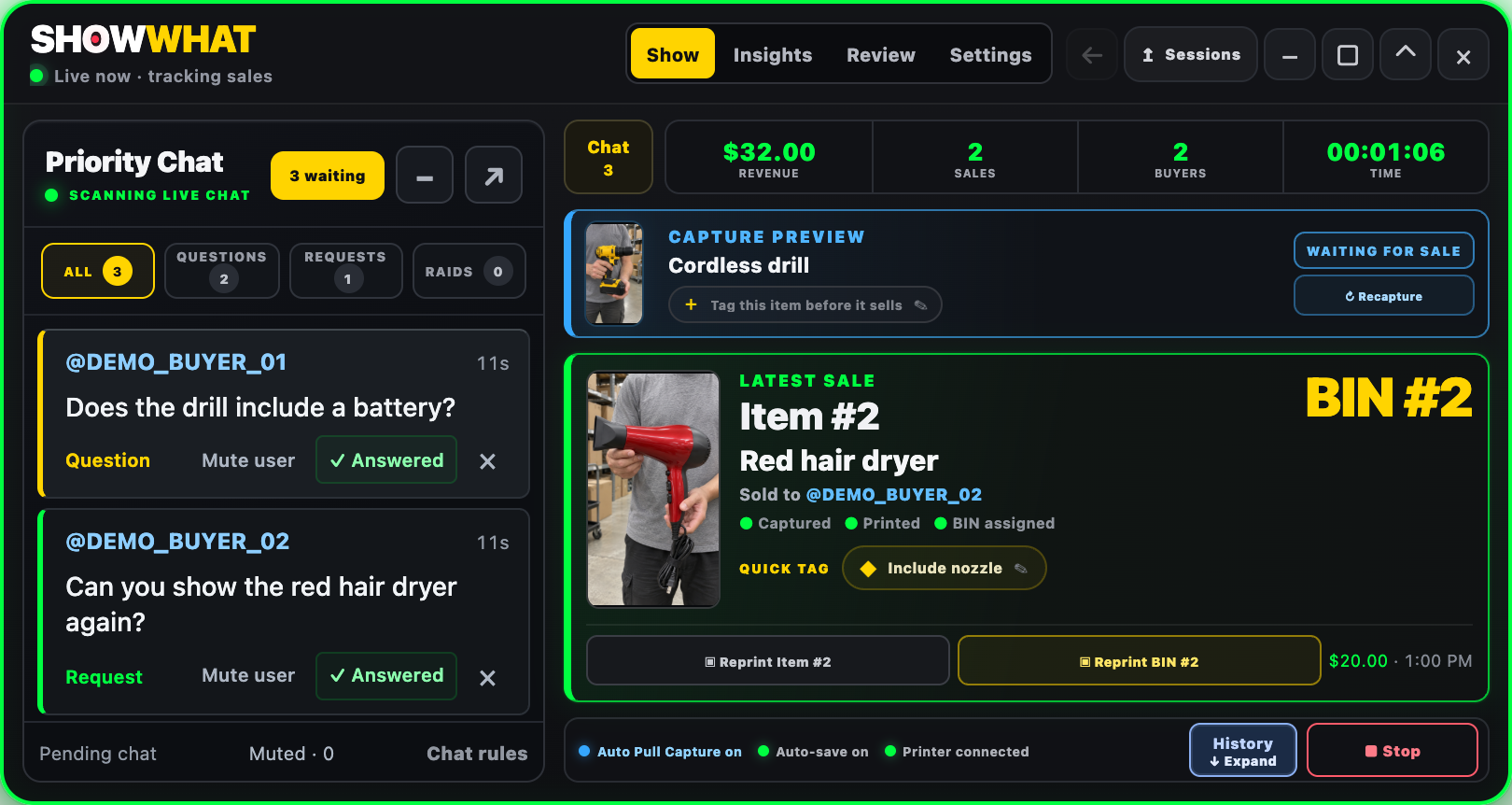
Aim for a stable, readable product view. Keep hands, glare and packaging from hiding the identifying detail. The preview avoids the surrounding chat and store sidebar, but anything composited inside the video itself—such as an OBS overlay or split screen—can still be part of the frame.
Check the queued image and recapture if needed
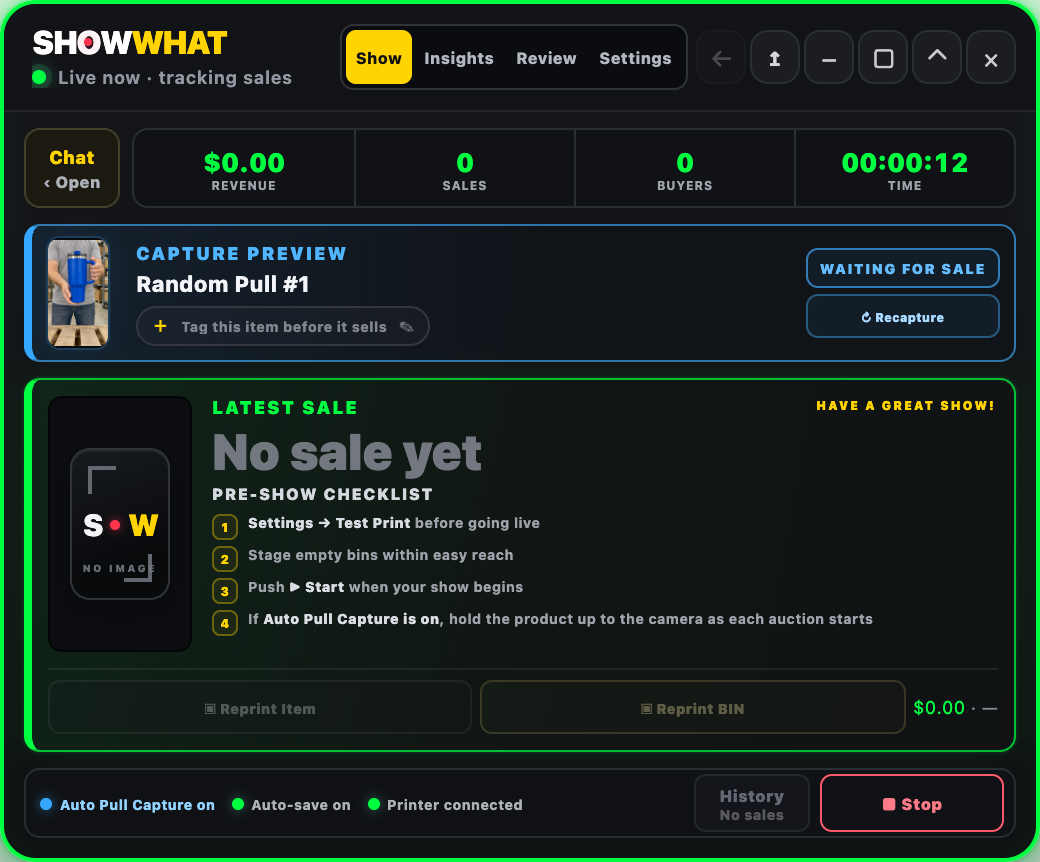
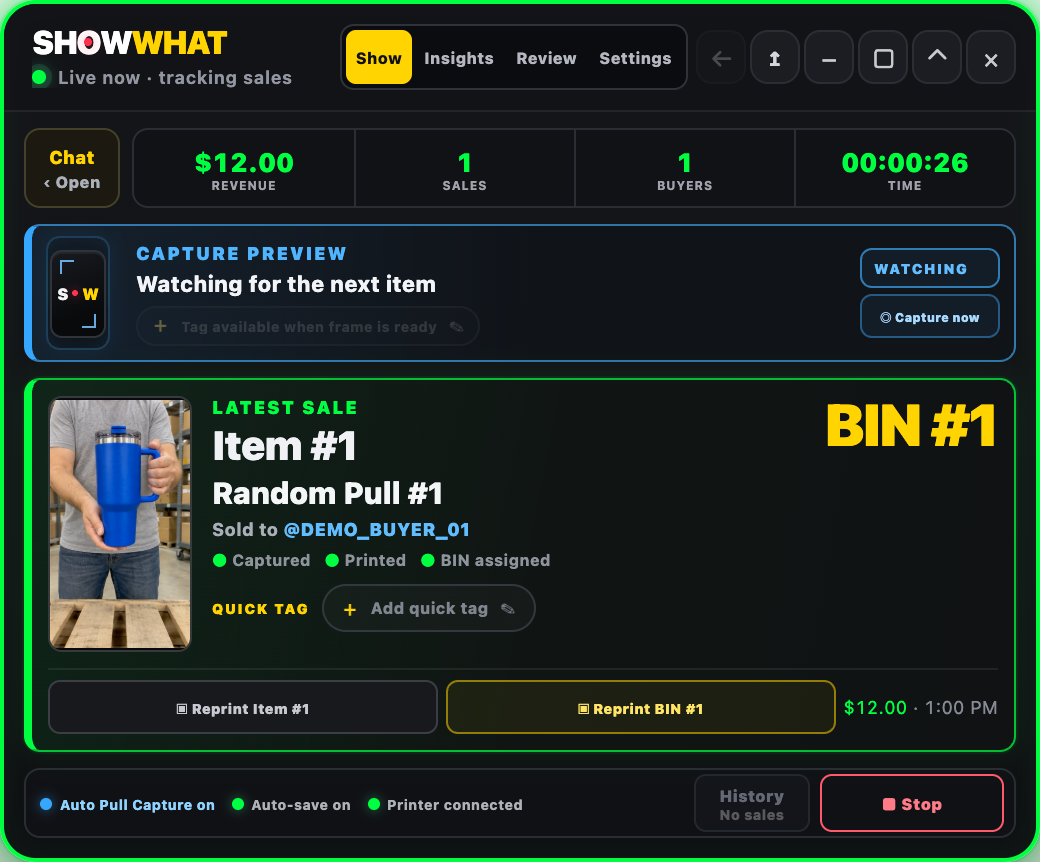
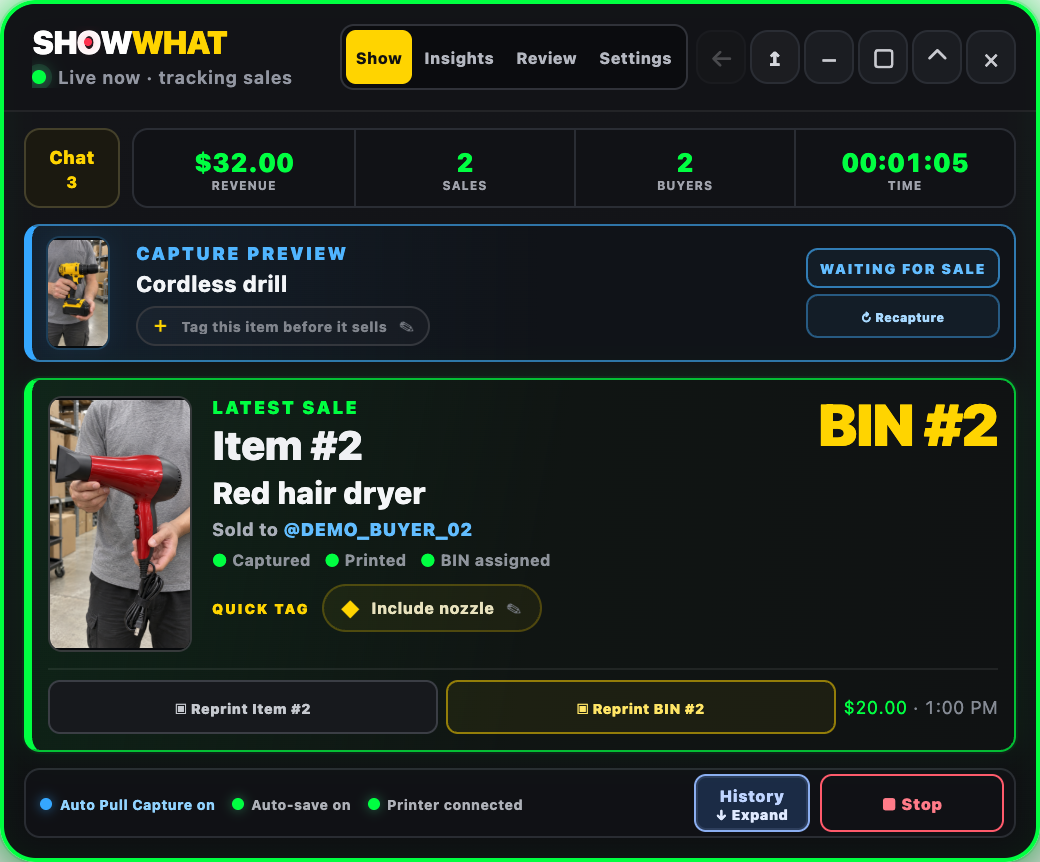
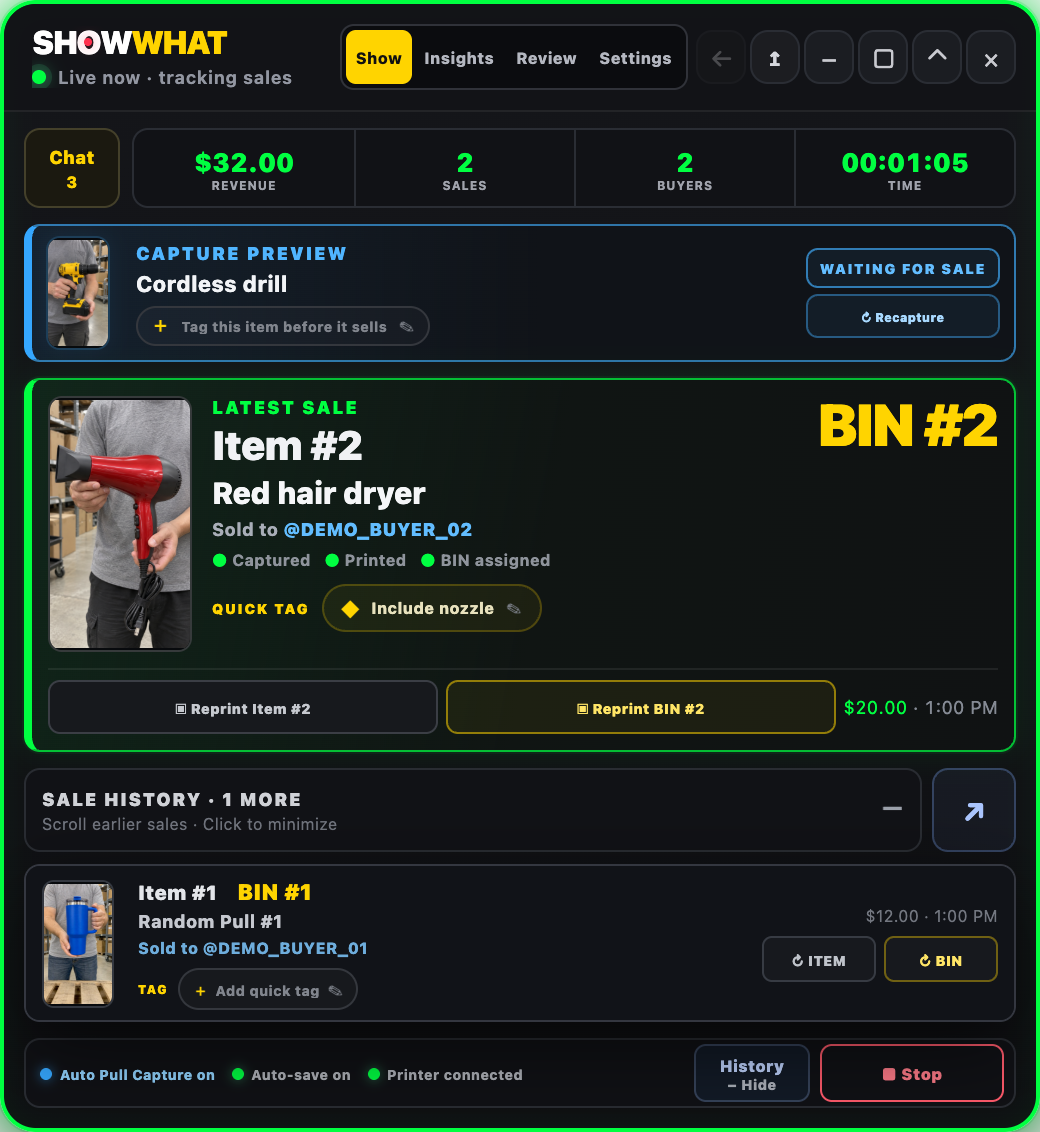
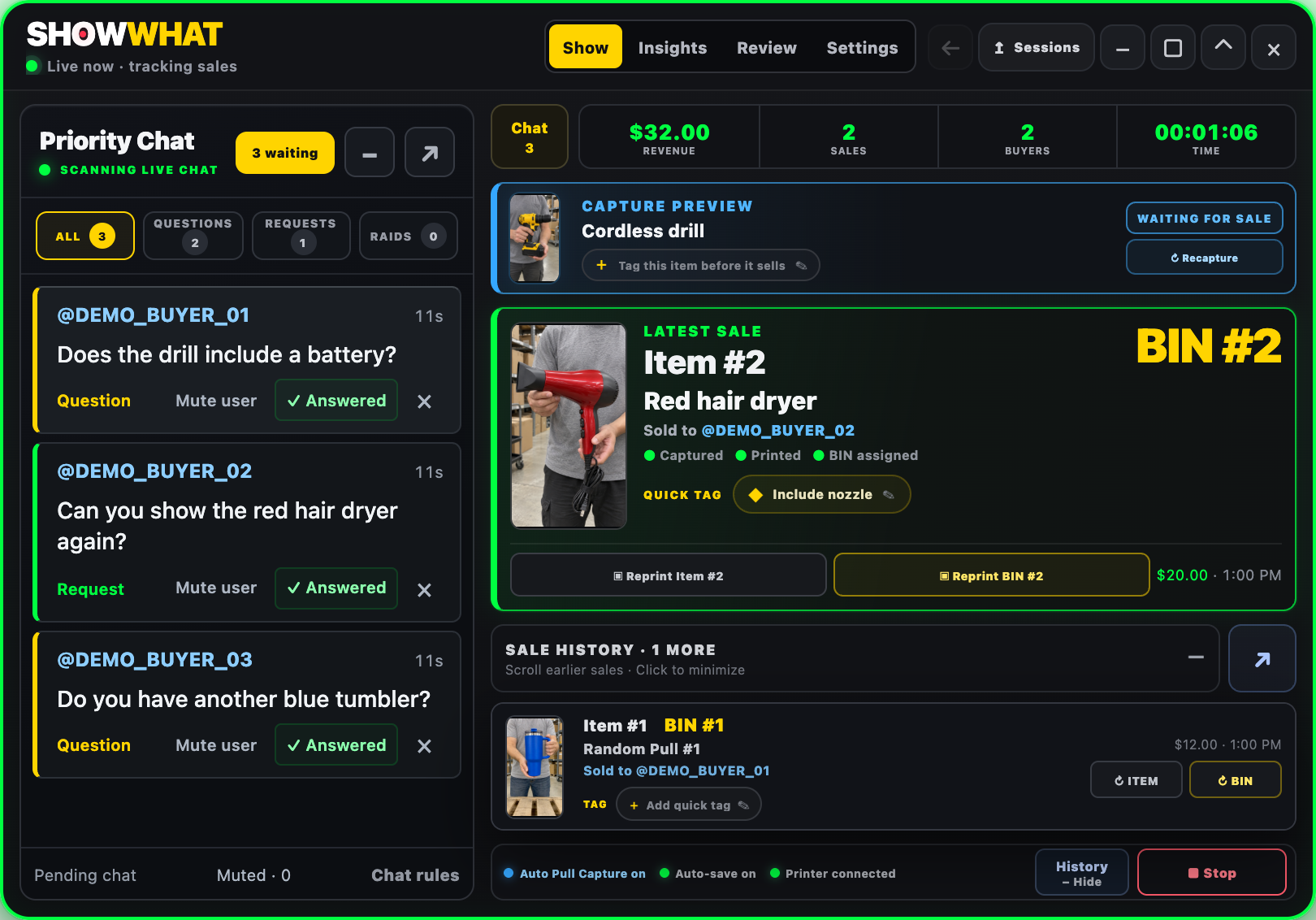
The capture preview and latest sale have different jobs. “Waiting for sale” means you are looking at a queued reference for the active item. It is not proof that a purchase has happened. The latest-sale card is where the completed sale appears.
If the preview misses the item, hold it in view and use Recapture. The manual frame can replace the queued image while the automatic backup is retained. Check the result before moving on. A short tag can add a location or distinguishing detail that a picture alone does not communicate.
Make this a small habit rather than a new task to manage after the show: product up, auction start, glance at the preview. A co-pilot can handle that glance and the occasional recapture while the host keeps the show moving.
Follow the image into the completed sale
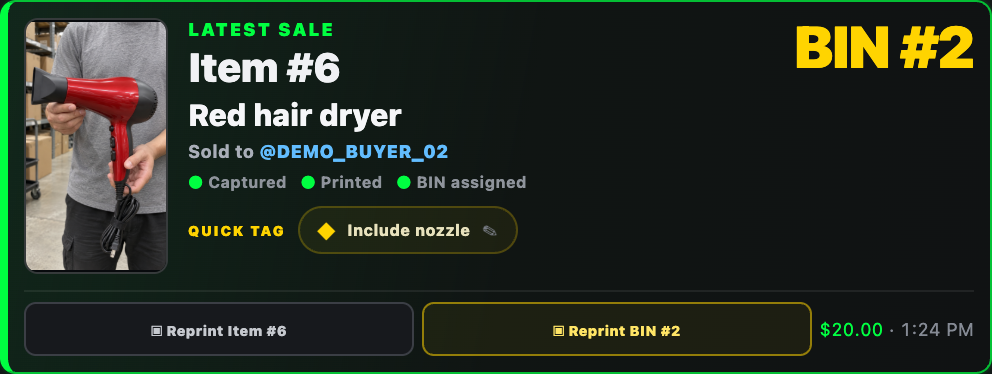
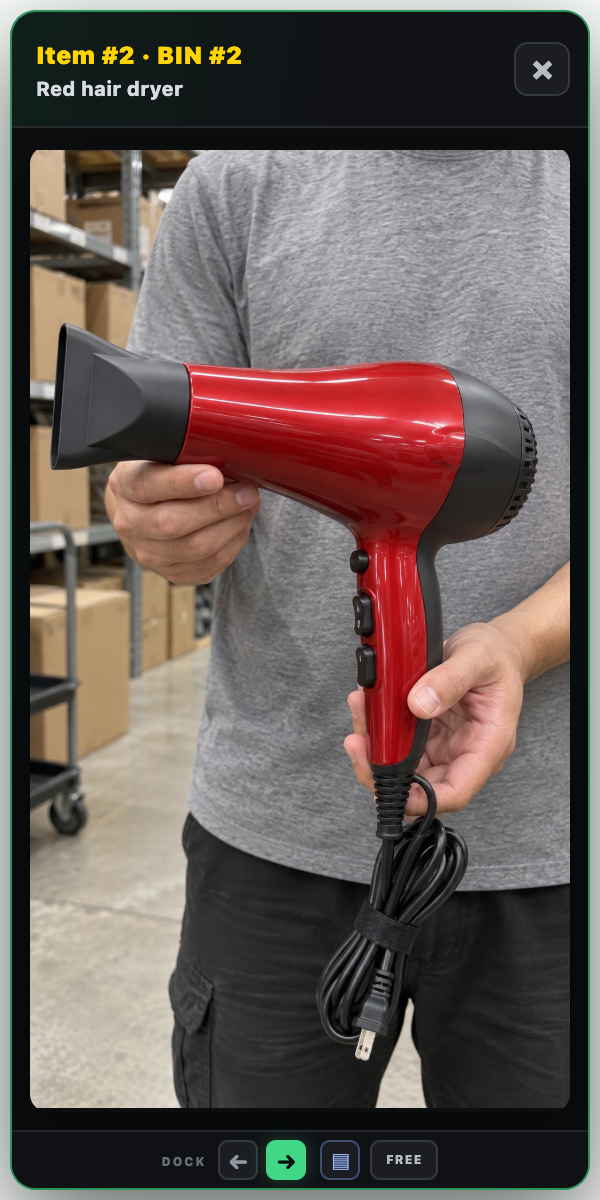
When the winning sale is captured, its image reference belongs with the item record, buyer and assigned BIN. Check the sale card and put the product in that buyer’s physical space. Click an available captured image to open its larger view when a small thumbnail is not enough.
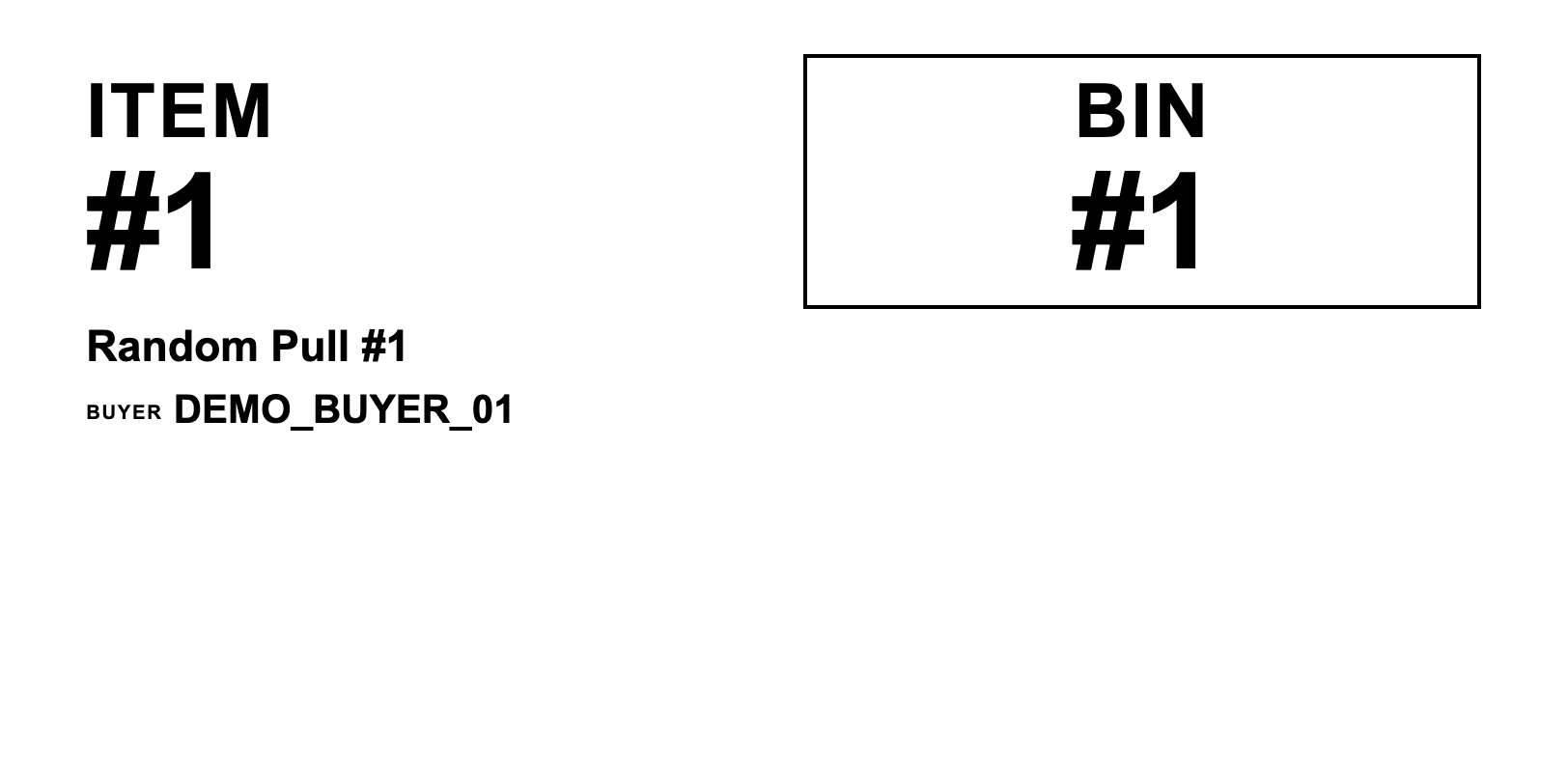
Keep item numbers and BIN numbers separate in your thinking. One is the individual sale; the other is where that buyer’s products are being collected. Repeated purchases can go to the same BIN without becoming the same item.
If the capture is missing or unclear, use a verified fallback rather than treating a nearby thumbnail as evidence. Pause the handoff, inspect the item details and check the platform order or video receipt if needed. The point is to reduce guesswork, not hide uncertainty.
Make random-pull fulfillment a visual check
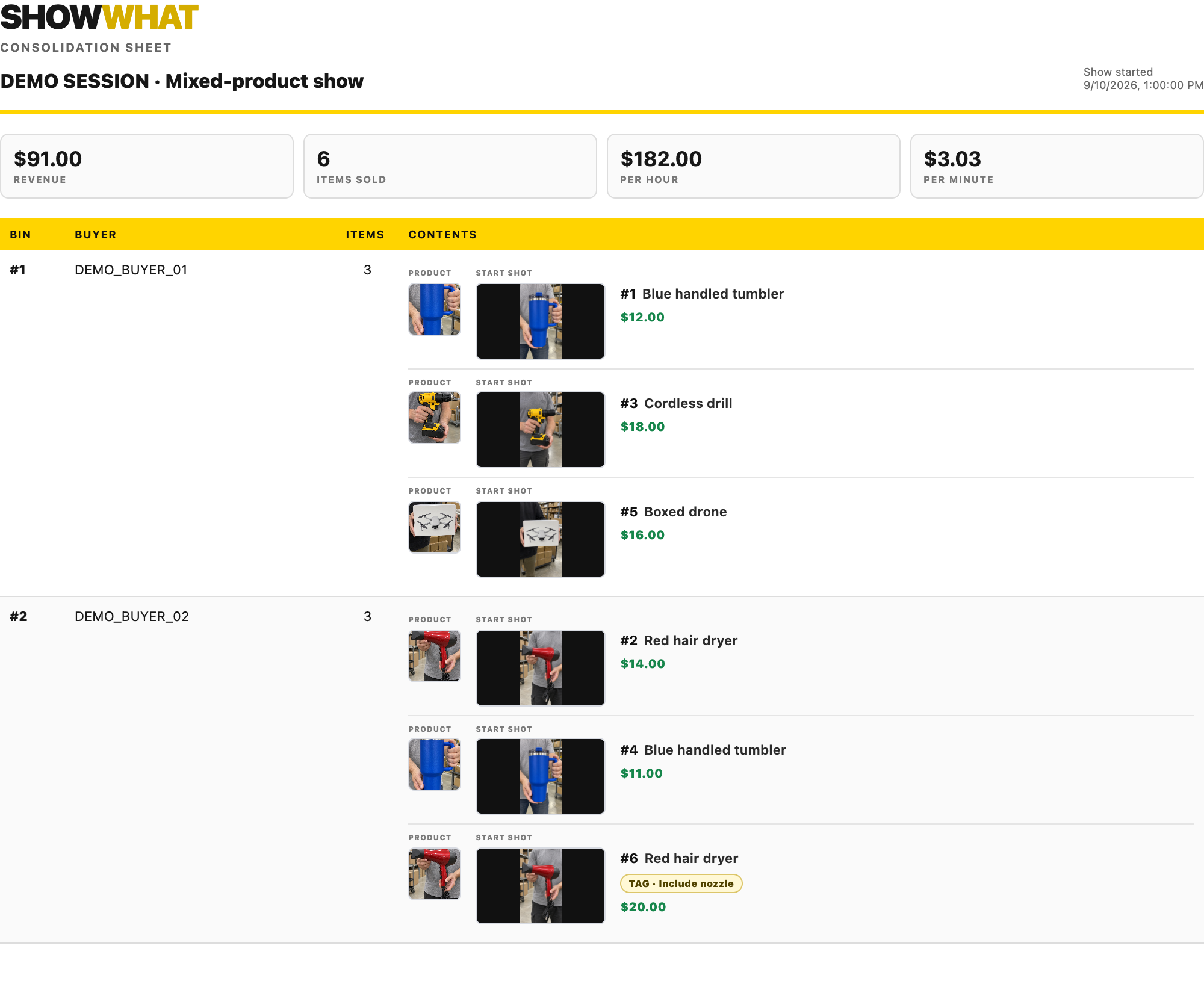
After ending the SHOWWHAT recording, use the consolidation sheet as a buyer-by-buyer reference. It includes available product images, start shots and tags with the item details. Compare the physical product to its record and confirm the buyer’s BIN before packing.
For repeated stock, the separate all-orders picklist helps total matching products across buyers. Be careful with generic random-pull listings: a common listing name or product ID can group physically different pulls. Verify the individual images and notes before collecting interchangeable units.
Save the session and choose a recognizable folder for exported reports before clearing the show. Then reconcile the packed contents with the current Whatnot shipment. Your local visual record helps identify what you sold; the platform remains the place to verify the final order and shipping details.
The same visual handoff works with or without a helper
If you sell solo, the saved reference helps your after-show self. With two people, the host presents the product while the co-pilot checks capture and organizes the sale. With a larger crew, the packing person can use the exported report instead of asking the host to reconstruct each pull.
The goal is simple: see the product, keep its reference with the sale, and know what to check at the packing table. SHOWWHAT brings that visual context into the organization workflow you already need.
Common questions
Does Auto Pull Capture take the picture when the buyer wins?
The automatic reference is captured at auction start and queued for the winning sale. Hold the product in view before starting. If the timing or frame is wrong, use Recapture while the current item is active and verify the result.
Can I fix a bad automatic capture?
Use the capture preview’s Recapture control while the active item is visible. A manual recapture keeps the automatic backup. Check the preview; neither the automatic nor manual frame guarantees a clear picture if the product is out of view.
Will chat and store items appear in the capture?
The capture is intended to show the video/product area, not the surrounding chat and store sidebar. Text, overlays and split-screen elements that are baked into the broadcast video itself may still appear. Check the preview using your actual camera or OBS layout.