

Start with the tools Whatnot already provides
From the buyer’s side, a live show looks simple. Behind the camera, you are hosting, tracking buyers, identifying products, managing orders and preparing to pack. Before adding software, map which of those jobs already has a reliable home.
Whatnot’s Seller Hub provides order and shipment management, and its Show Report can be downloaded as a CSV. Use the platform record for purchases and shipment details. SHOWWHAT complements that work; it does not replace the marketplace’s checkout, payment processing or carrier shipping labels.
This is a guide to choosing useful categories of seller tools, not an independent ranking of competing products. SHOWWHAT is our own app. The best setup for you depends on the problem you are trying to remove, the show format and who is doing the work.
Add a live show assistant for the work behind the camera
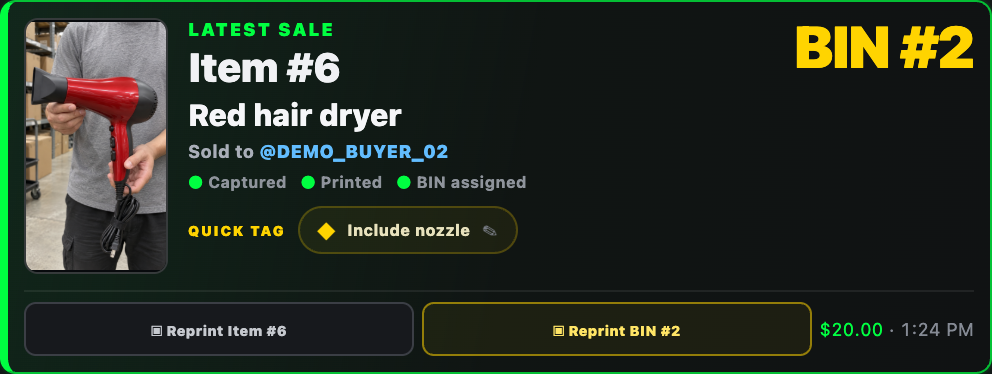
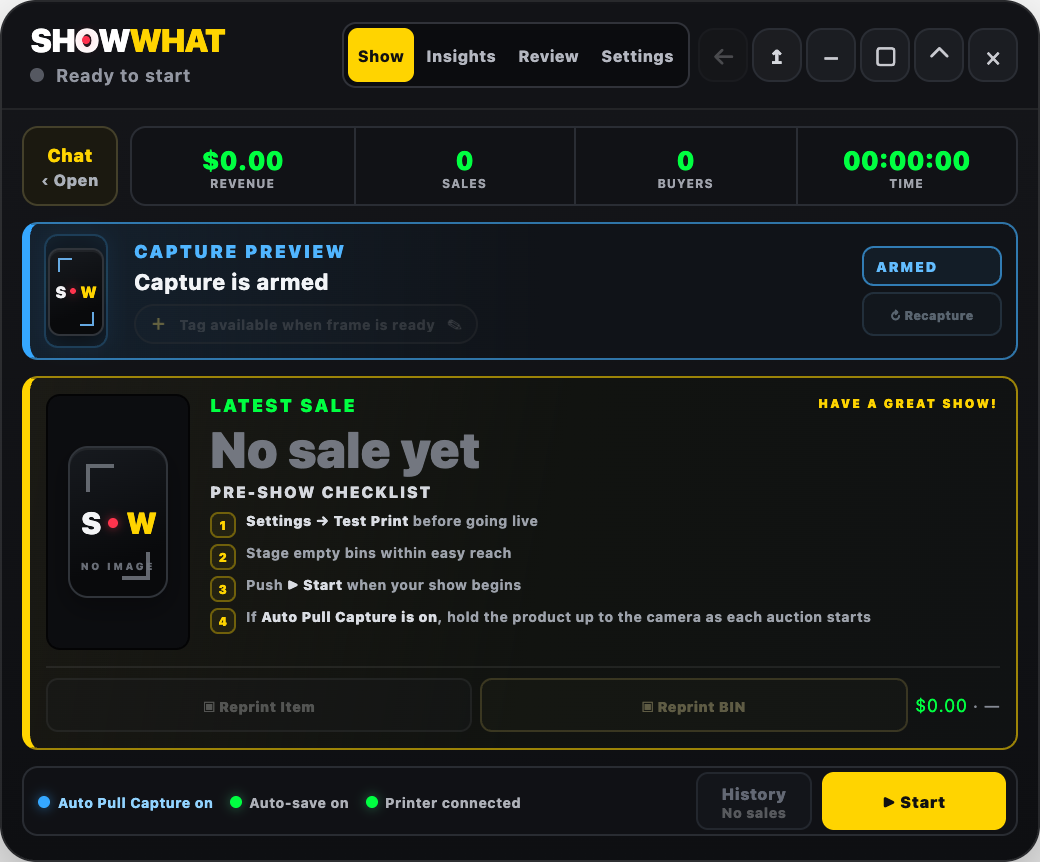
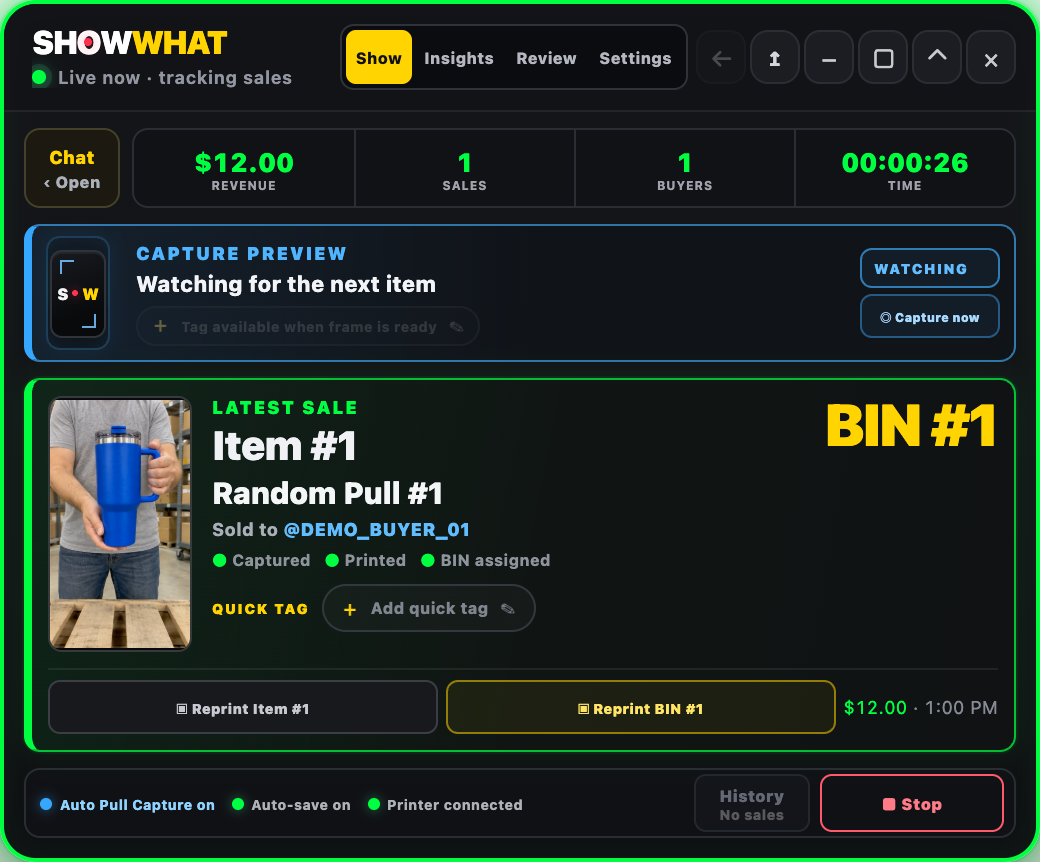
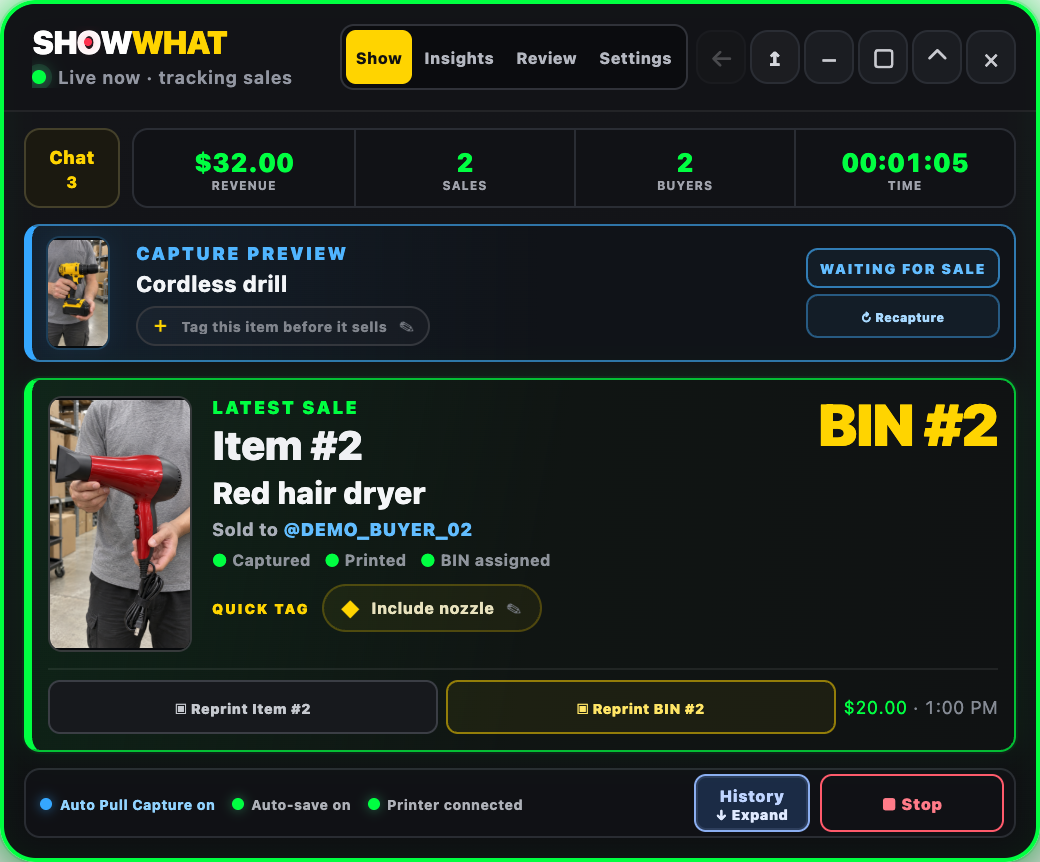
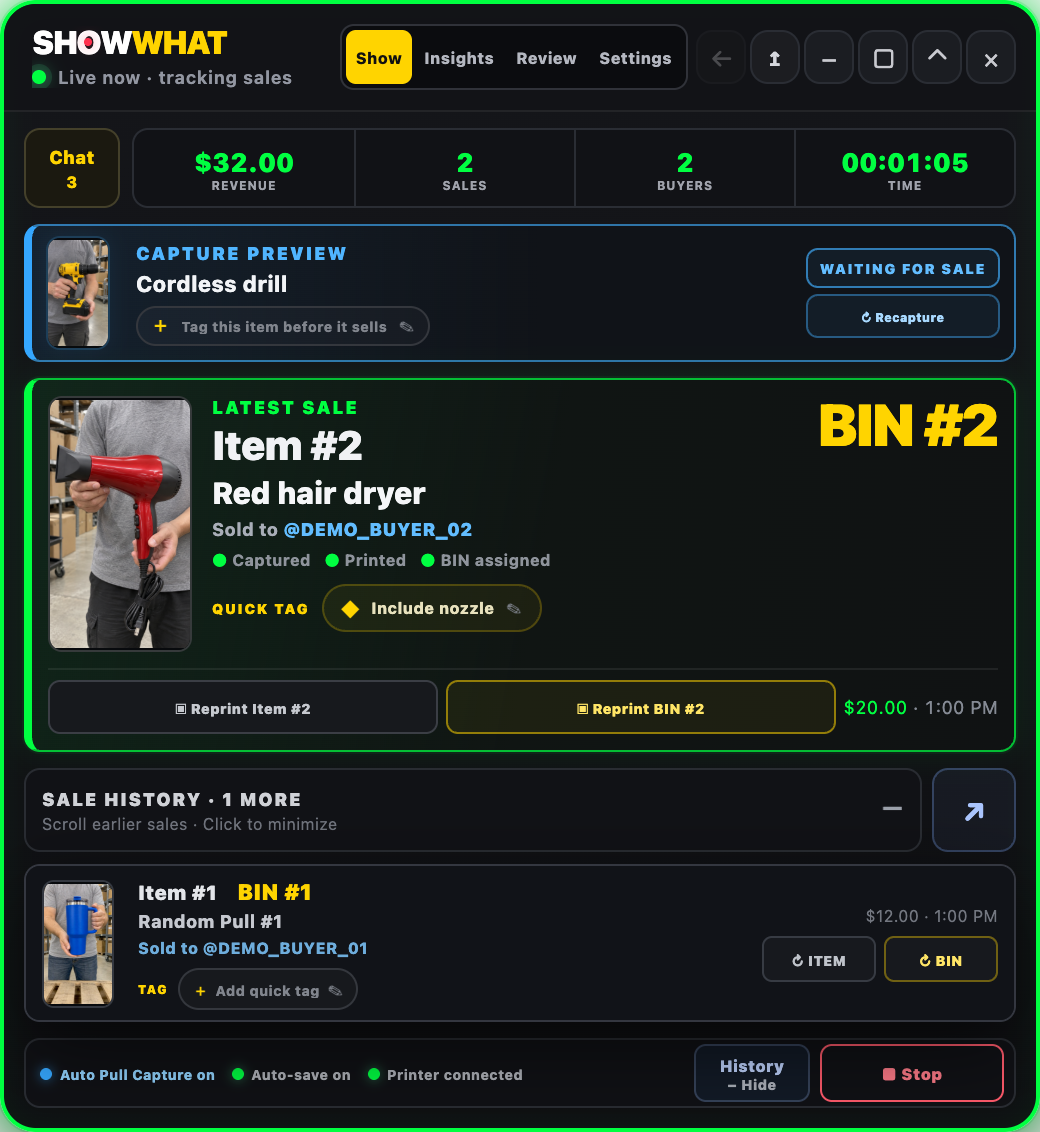
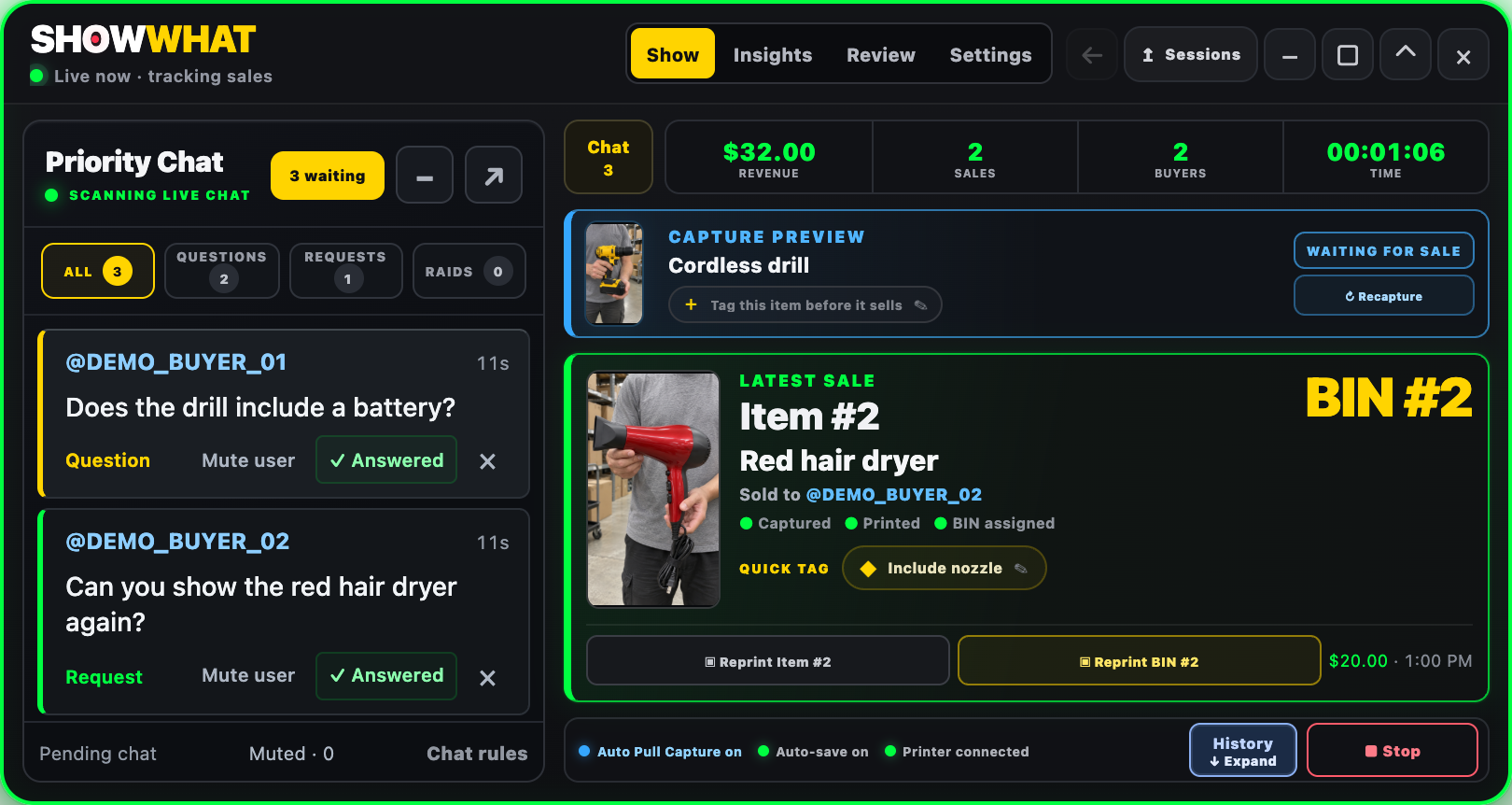
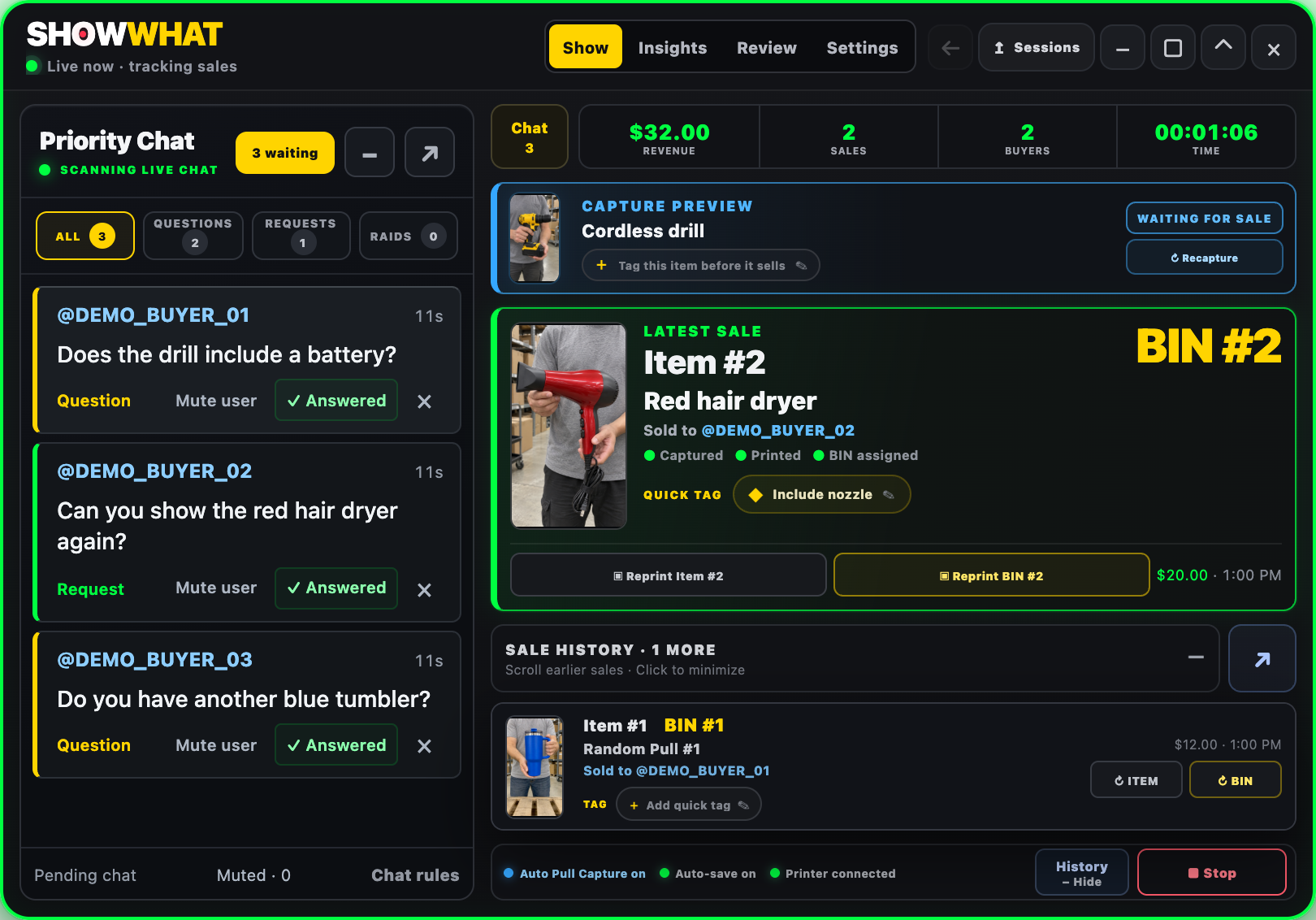
The operational gap is often physical: the sale happened, but the product is now in a pile and the buyer’s name is on a screen somewhere else. SHOWWHAT connects a captured sale to its item record and buyer BIN, keeping the information close to the action.
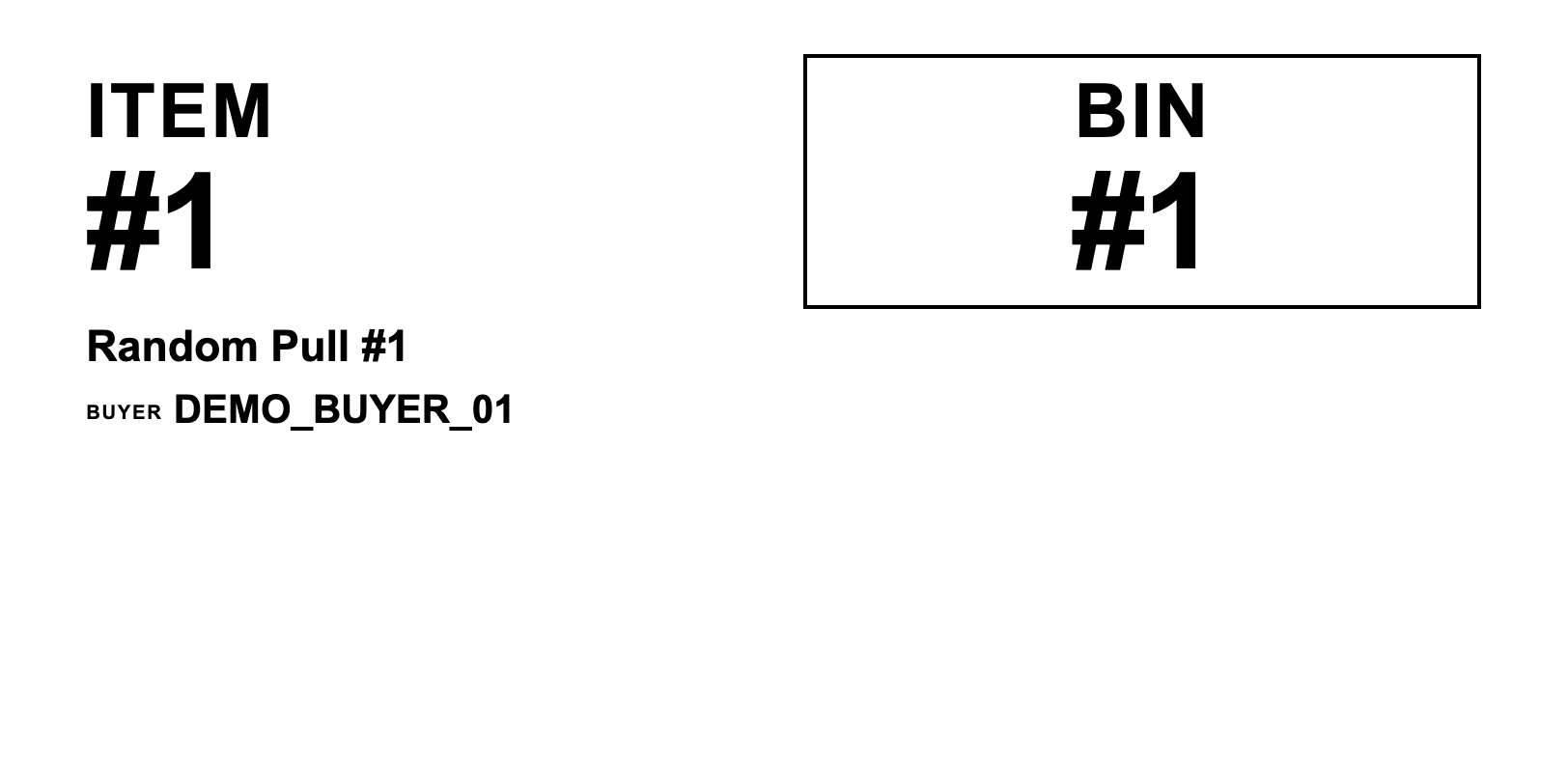
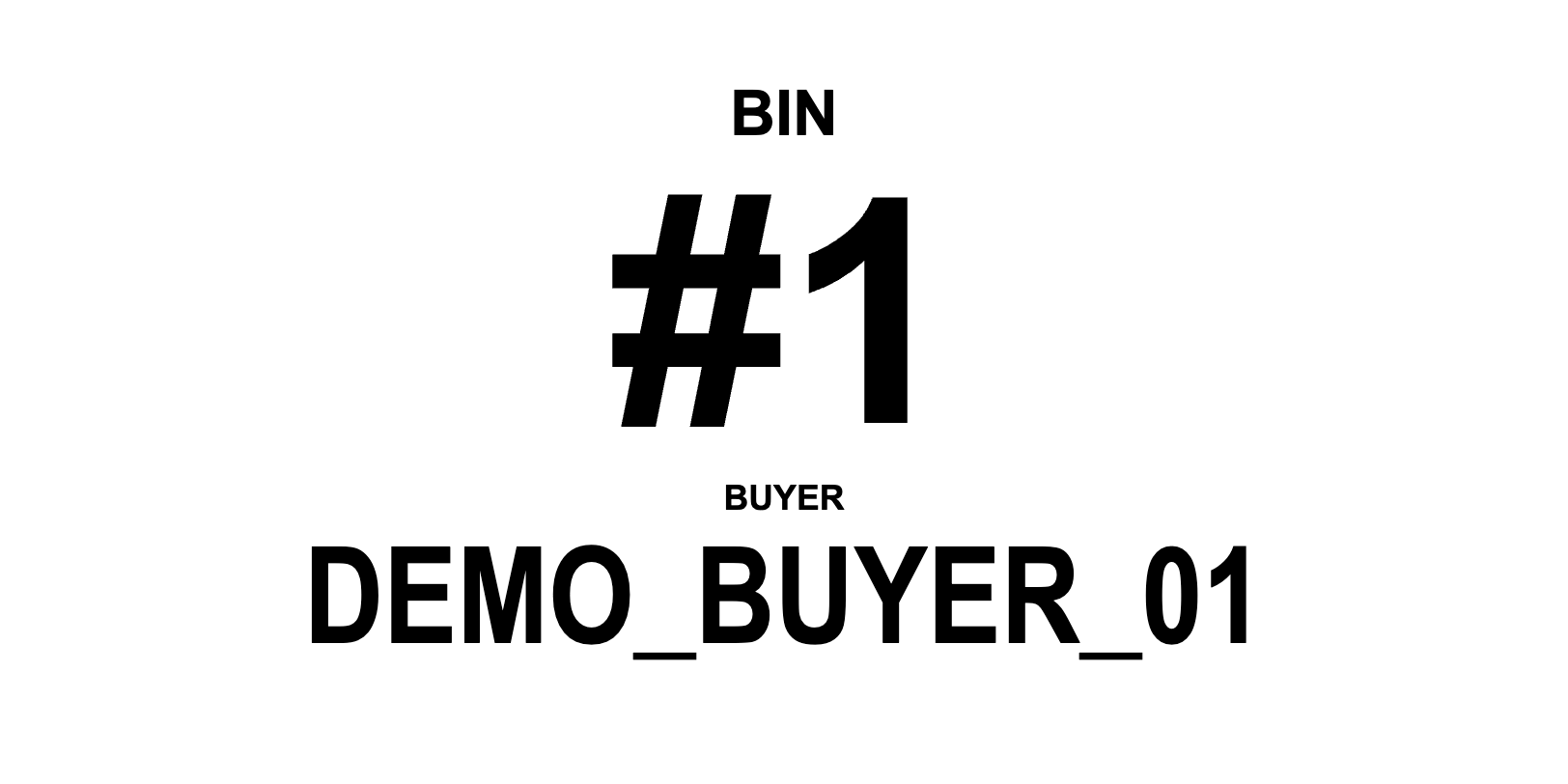
Automatic BIN and item labels support that handoff. With printing enabled and your printer configured, you can label and sort during the show. If you need another label later, the sale card has direct reprint controls. A test print before the show is still essential; software cannot fix an unplugged printer or the wrong label stock.
Choose bins you can reach and a layout you can repeat. The useful change is from “sell, pile, sort later” to “sell, identify, BIN, check.” The app assists the process; the physical placement still needs to happen.
For random pulls, prioritize a visual record

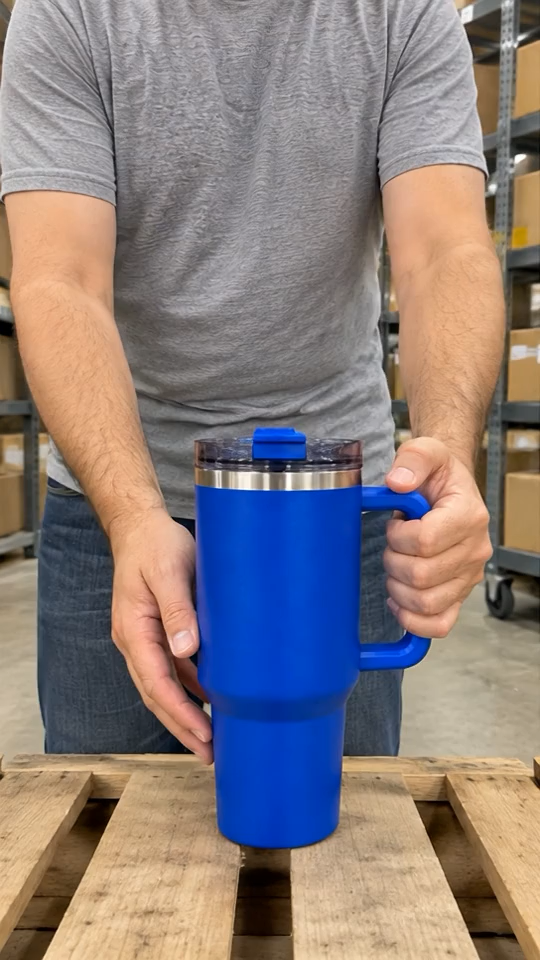
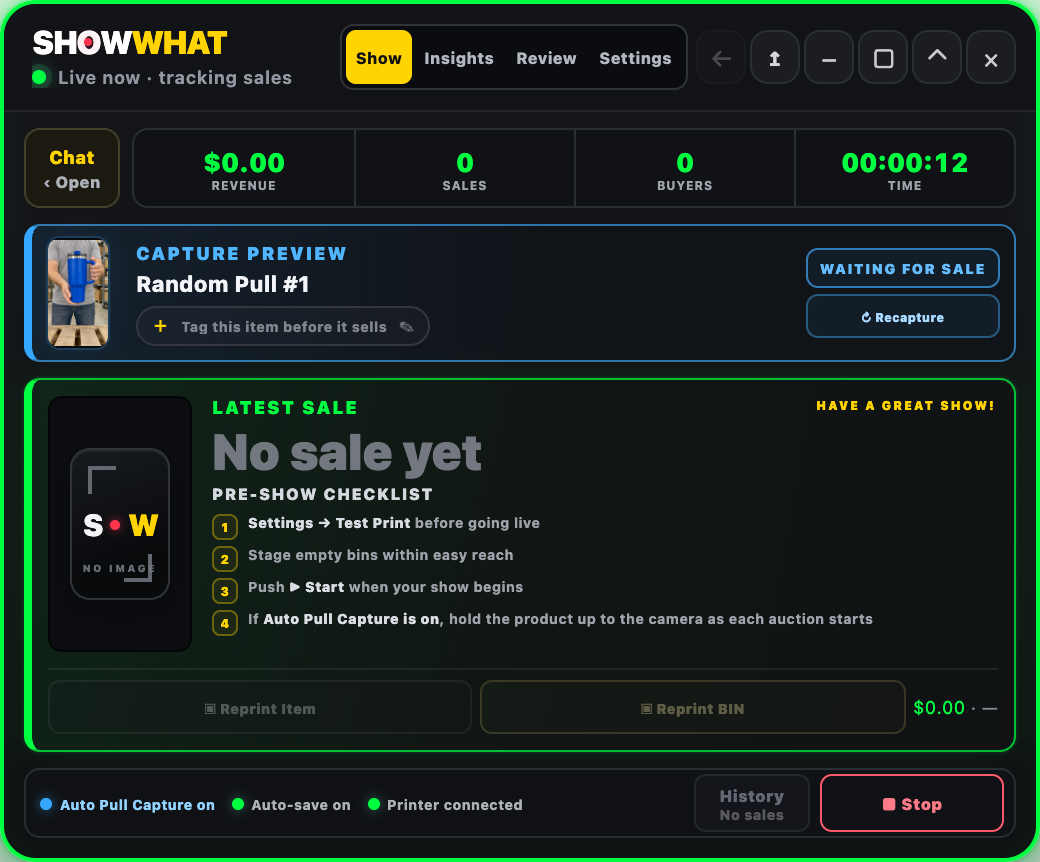
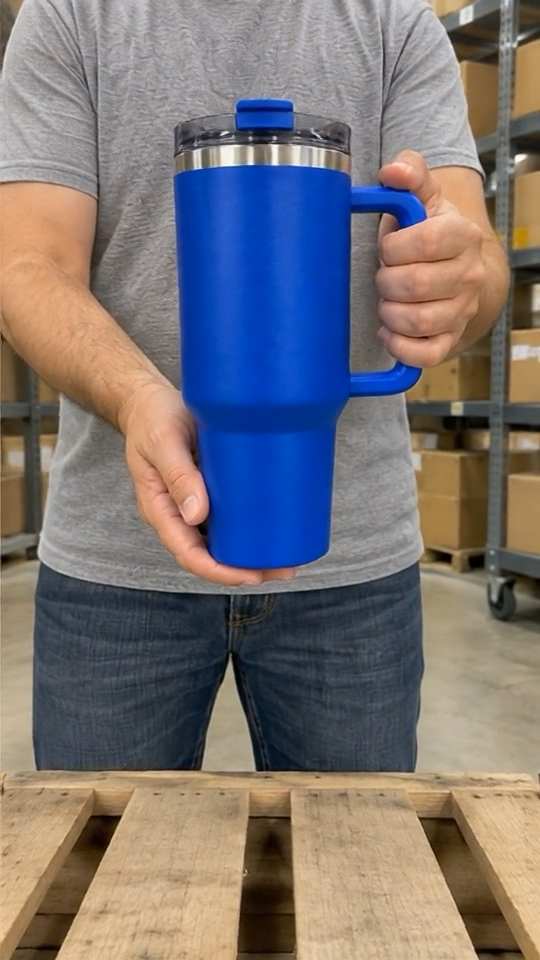
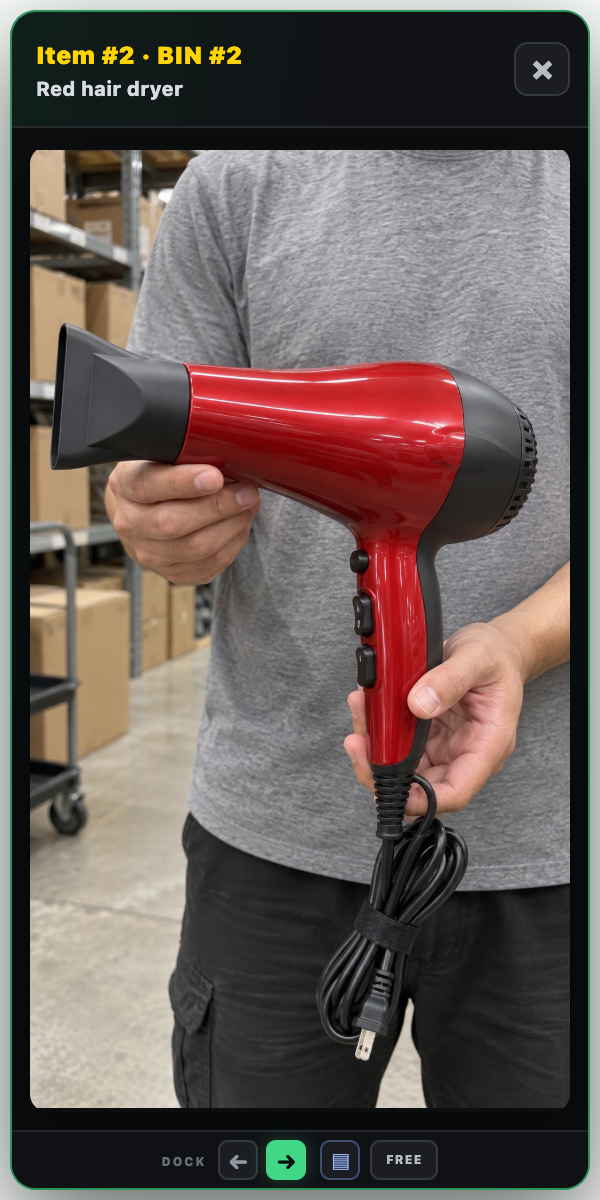
For a standard listing, the product title may be enough to find the item. For a random pull, a title can hide the detail that matters: which physical product was shown for that sale. A useful seller tool preserves that context.
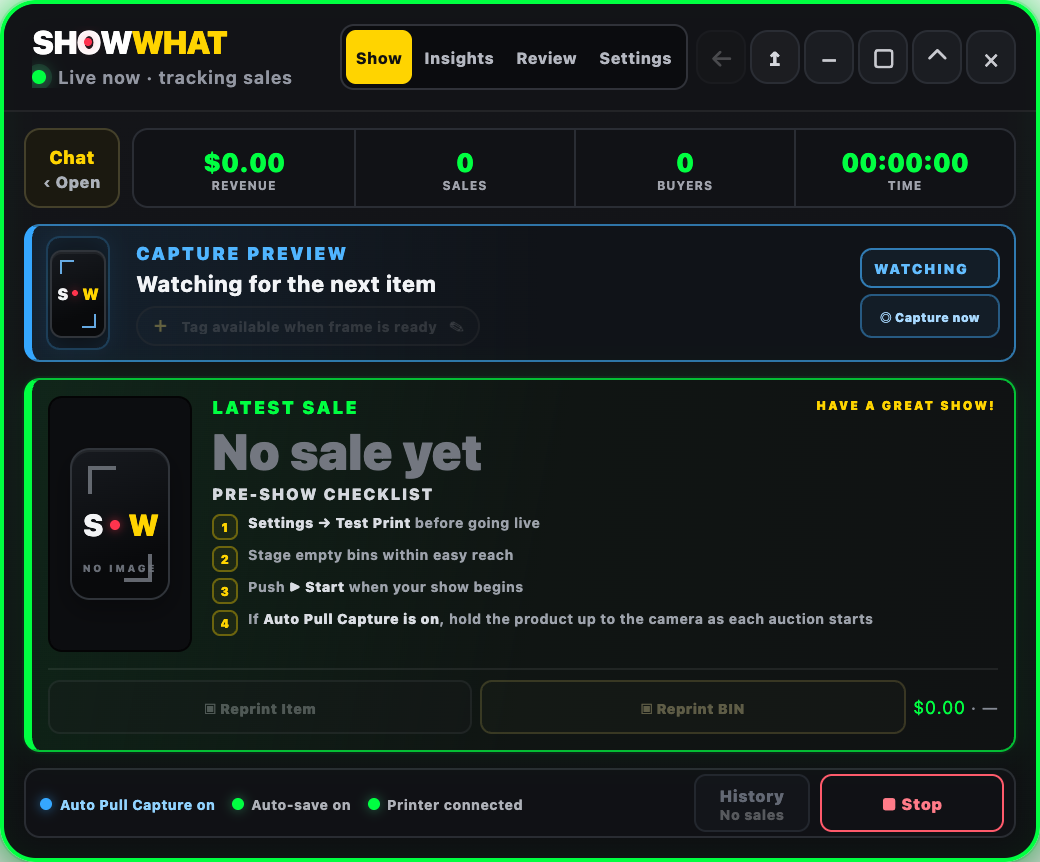
Auto Pull Capture is SHOWWHAT’s standout feature for that problem. It queues a frame from the start of the auction, then associates the captured reference with the winning sale. Show the product before starting the auction and check the preview. Use Recapture if the first frame is unclear.
The benefit is less detective work at packing time. It is not automatic product recognition and it does not guarantee that every sale has a usable image. A short item tag and a quick visual check make the record more useful when a camera angle, overlay or timing gets in the way.
Choose packing tools that answer the right question
A product picklist and a buyer packing reference solve different problems. The SHOWWHAT all-orders picklist totals matching products across the captured orders, helping you collect repeated stock together. The consolidation sheet groups each buyer’s items and their available visual references under a BIN.
That continuity—from recorded sale to image, BIN and packing reference—is more useful than a label in isolation. Save the session, download the reports you need and verify current platform shipment details before dispatch. You can hand an exported report to a helper without expecting them to remember the show.
Use show insights to ask better questions
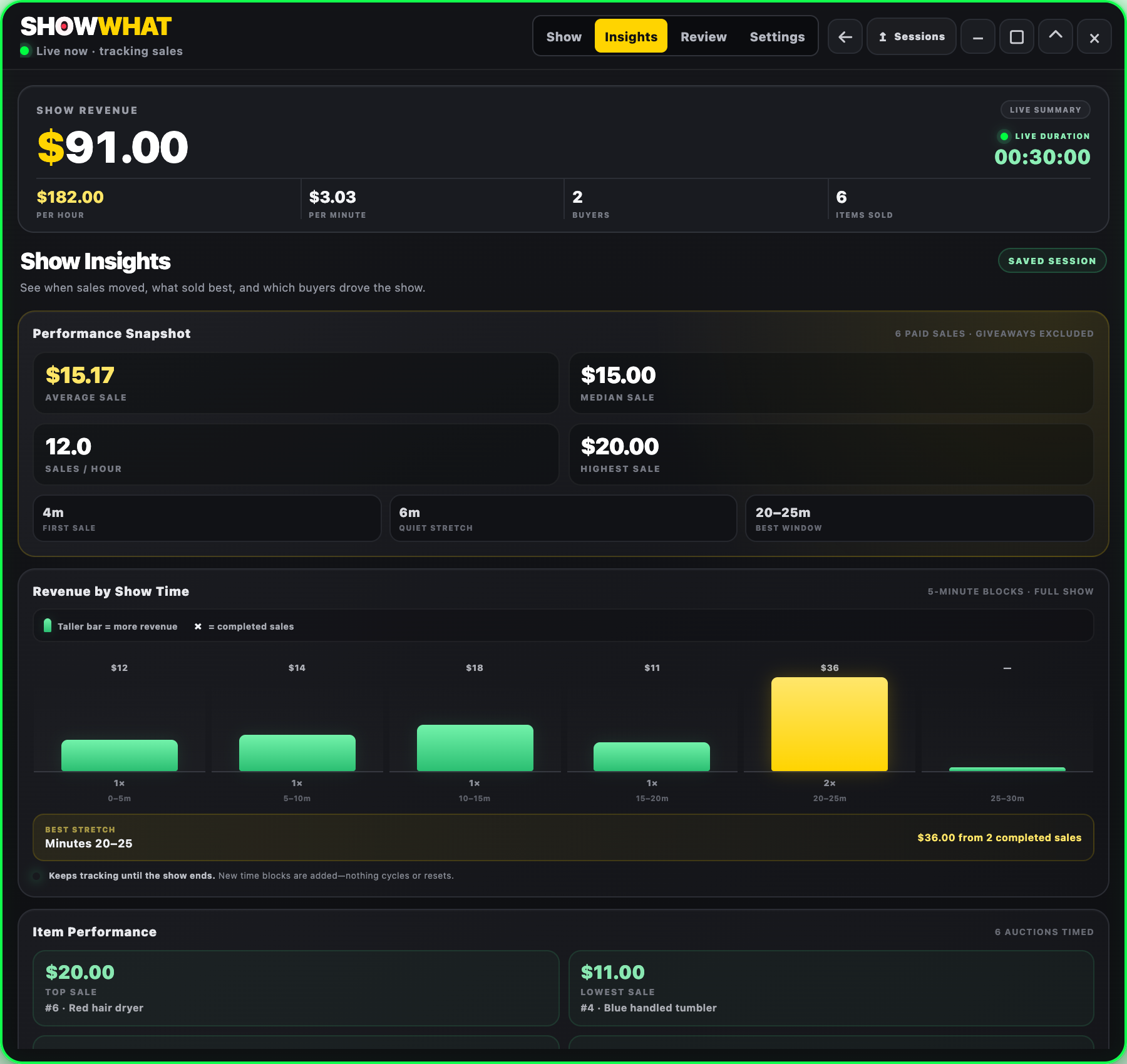
Whatnot’s Seller Analytics reports marketplace sales performance. SHOWWHAT’s Insights works from the session it captured: revenue, sales, buyers, item performance and a timeline of when completed sales happened. They serve different purposes, so do not treat the two totals as automatically interchangeable.
In Revenue by Show Time, taller bars mean more captured revenue in that interval; the count indicates completed sales. It covers the full recorded show, not a repeating first-15-minutes window. Longer sessions use wider time blocks to keep the chart manageable.
Use a strong or quiet block as a question: did the product mix change, did a break occur, or did auction timing change? Compare saved sessions when the conditions are useful to compare. A chart can show a pattern; it does not by itself prove why that pattern happened or predict what the next show will earn.
Fit the tools to your show, not the other way around
Solo sellers need fewer interruptions. A host with a co-pilot needs a clear division of attention. A three-person setup can divide hosting, operating SHOWWHAT and handling fulfillment. These are practical workstation and handoff arrangements, not a built-in multi-user account system.
Start with the biggest friction point. If it is sorting, organize your BINs first. If it is identifying random pulls, practice the capture timing. If it is repeated trips to the same shelf, use the all-orders picklist. Your show, your workflow, your SHOWWHAT.
Common questions
What tools does a Whatnot seller need?
Start with platform order and shipping tools, a reliable camera and connection, suitable packing materials and a clear physical sorting system. Add software for a specific bottleneck, such as label printing, random-pull identification or collecting products across orders.
Does SHOWWHAT replace Whatnot Seller Hub?
No. SHOWWHAT is a live show assistant for captured sales, visual references, organization labels, BINs and session review. Keep using Whatnot for current order, payment and shipment information.
Can I use capture and organization without printing?
Yes. Automatic printing can be disabled in Settings while you use the capture and organization workflow. Check the preview, save the session and use the reports as needed.