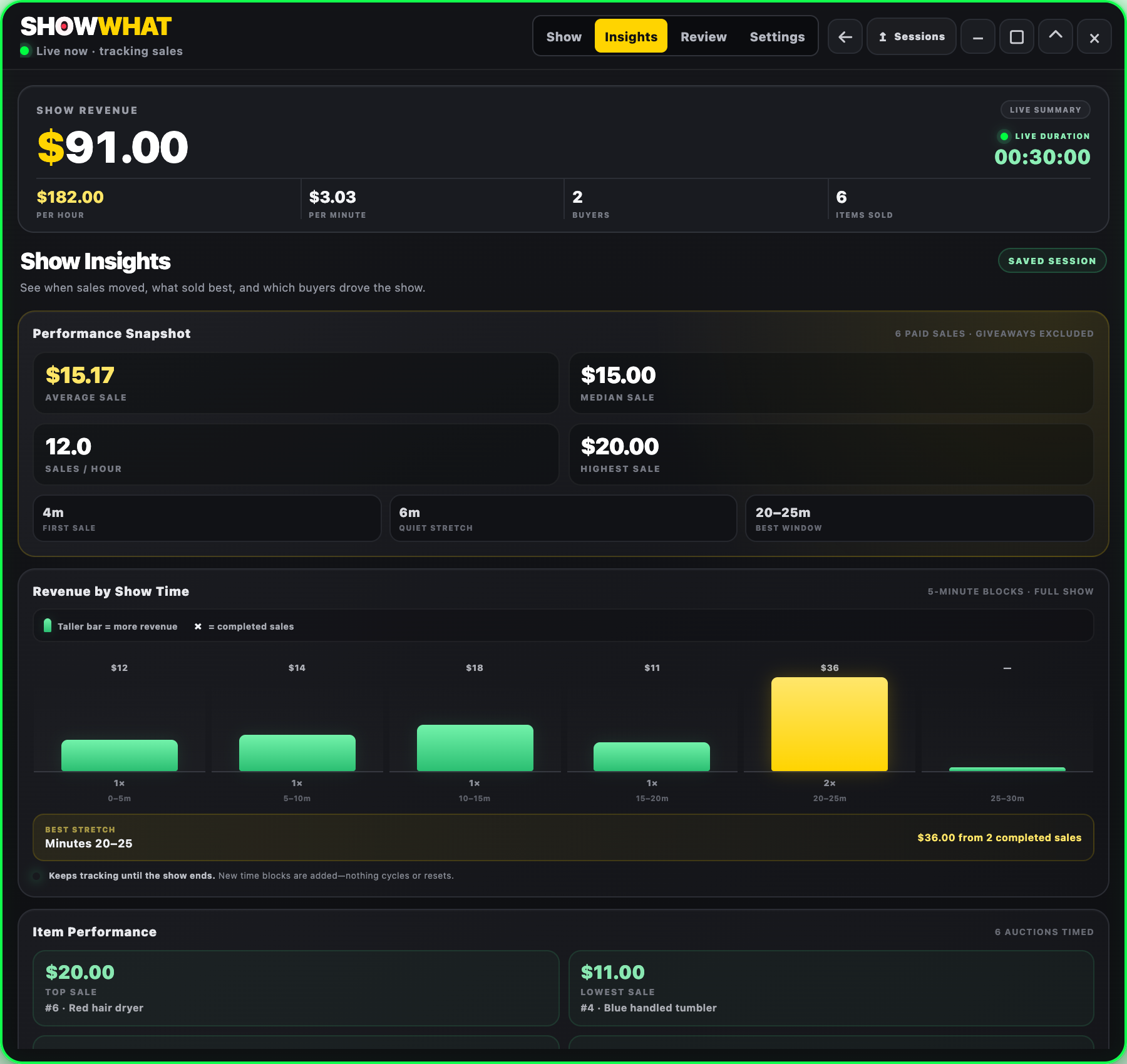
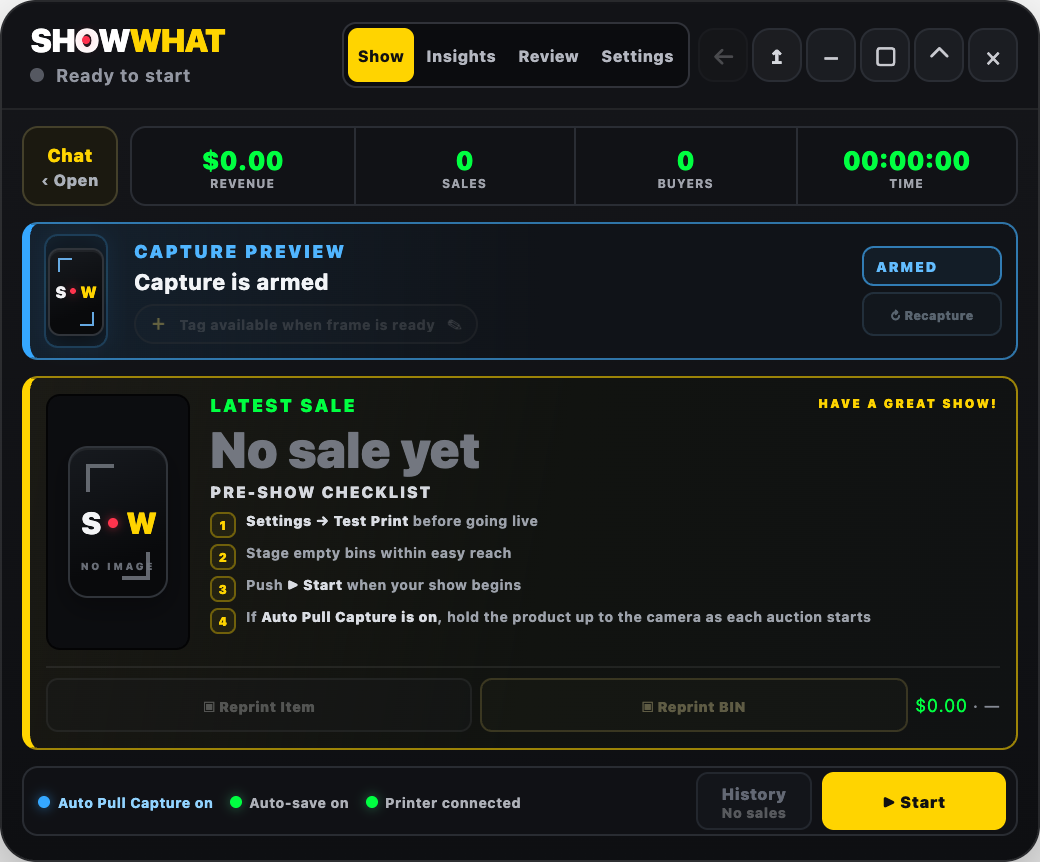
Set up. Get ready to sell.Your printer, bins and Auto Pull Capture are ready before the first sale.
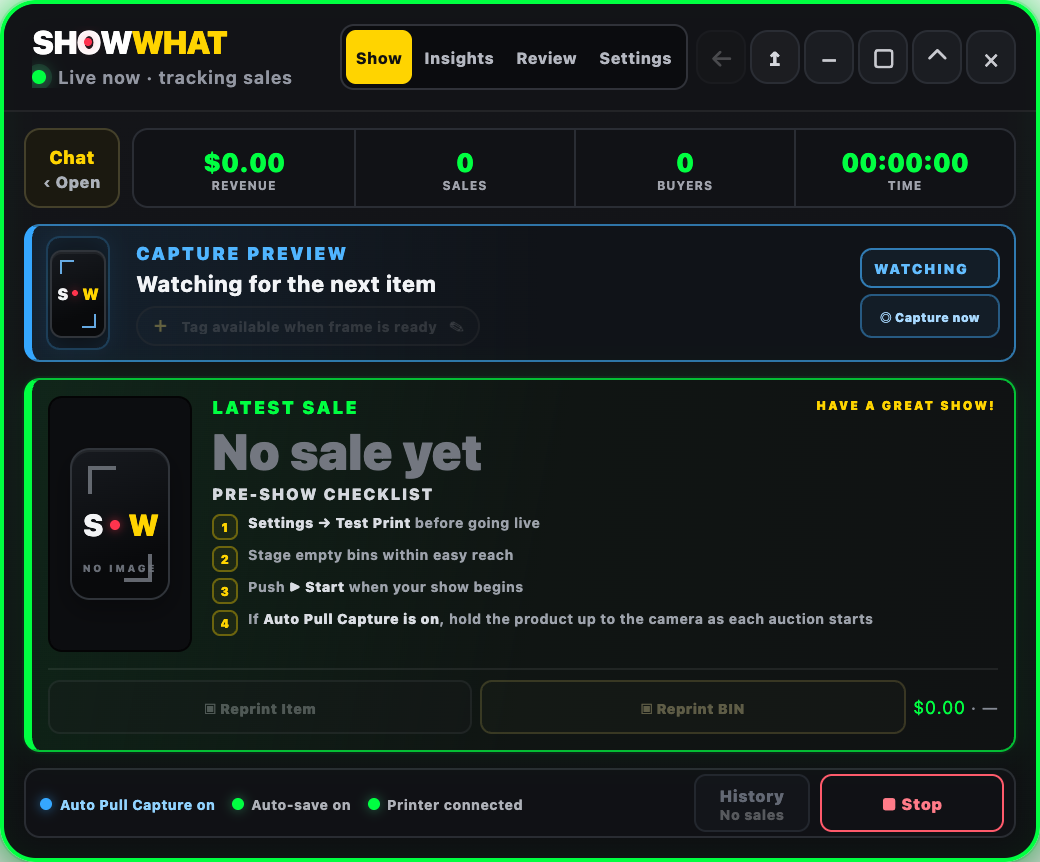
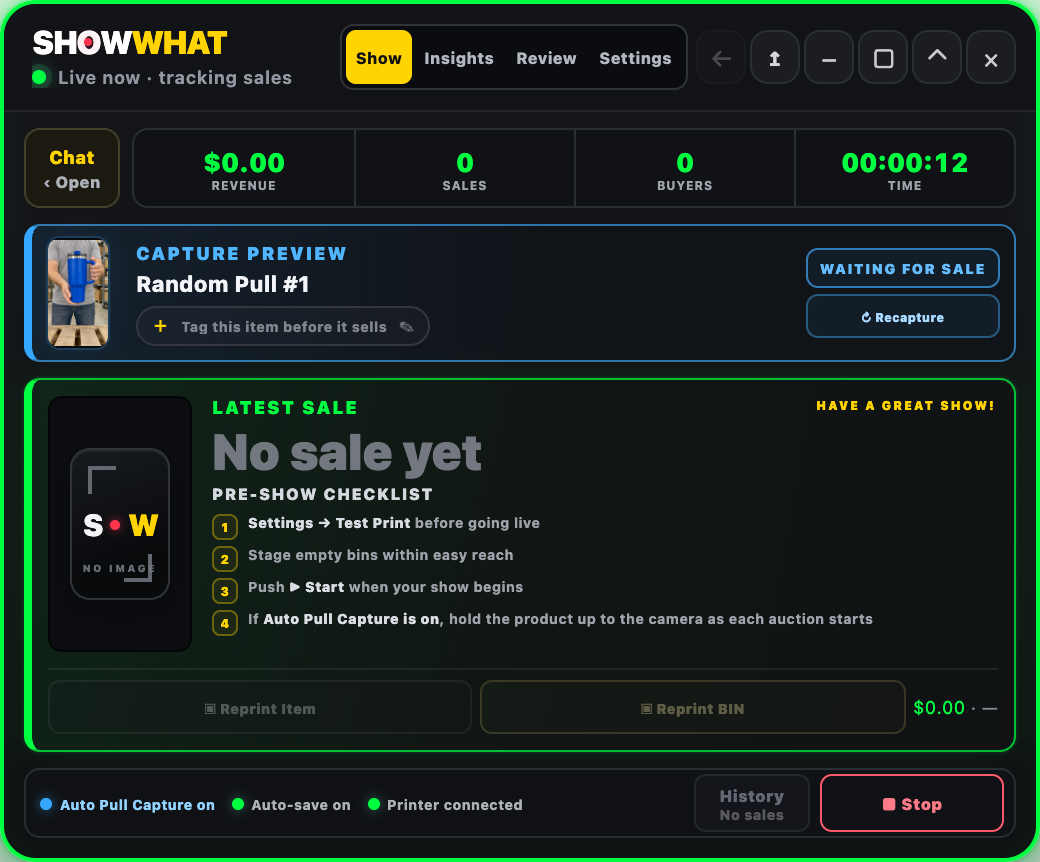
Press Start when your show begins.One click starts SHOWWHAT recording—not your livestream.
SHOWWHAT is now recording.The green border lights up. Completed sales will appear here.
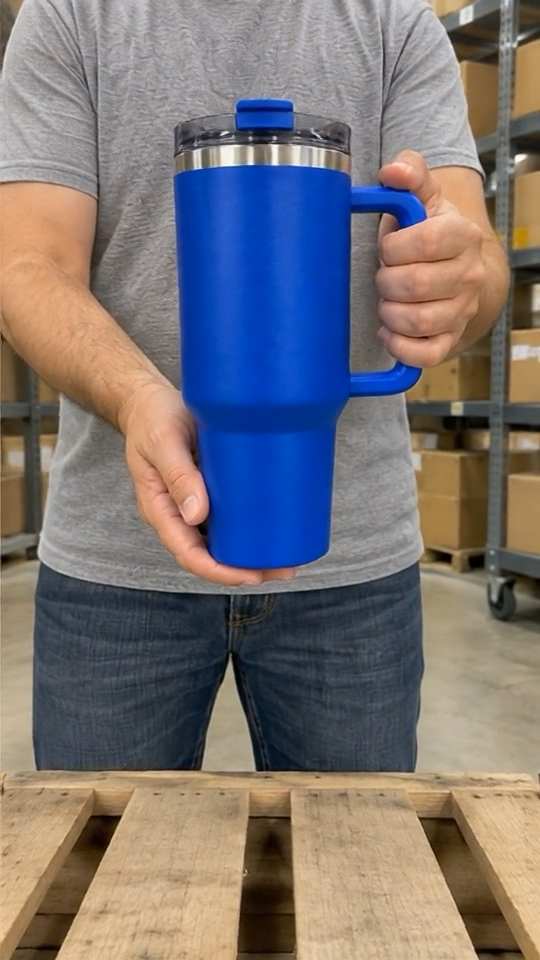
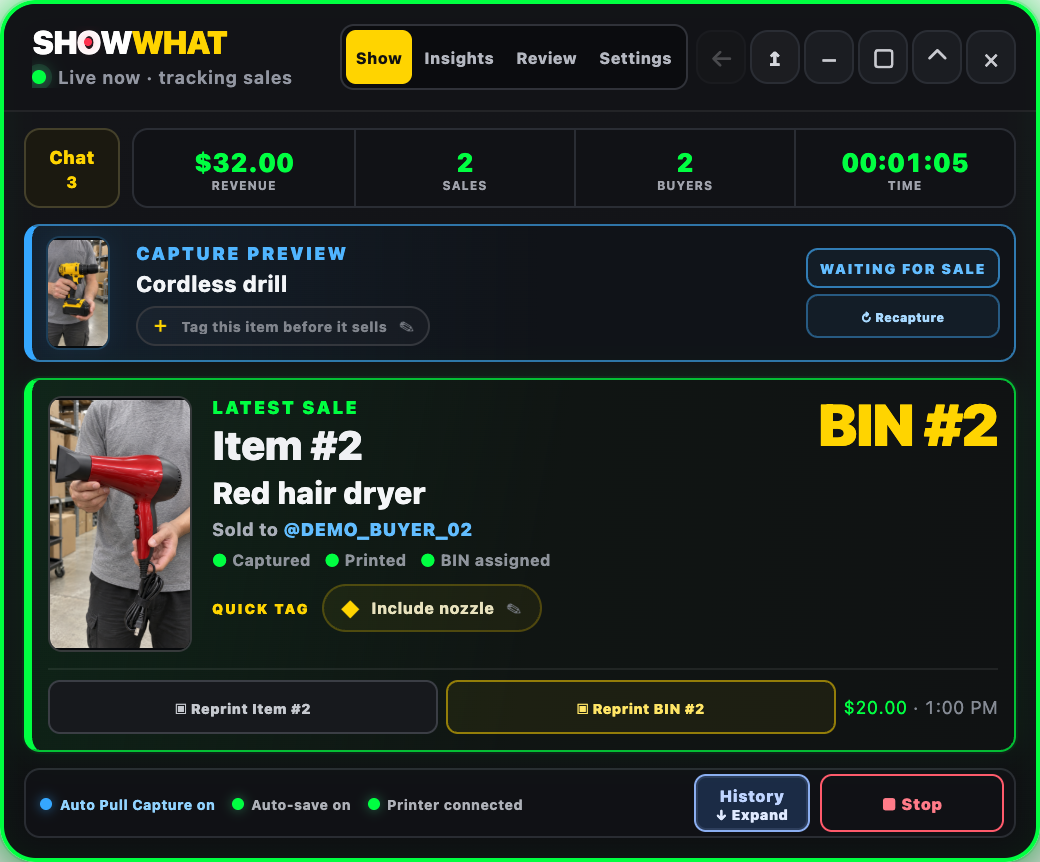
Hold the product up as its auction starts.With Auto Pull Capture on, SHOWWHAT saves the product in view.
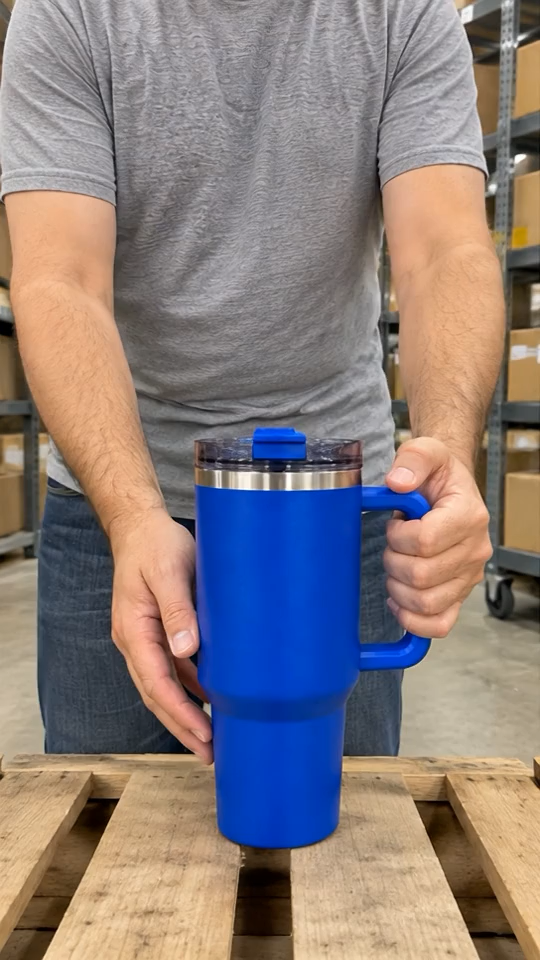
SHOWWHAT captures what you’re holding.“Random Pull #1” now has a photo of this blue tumbler in the capture preview.
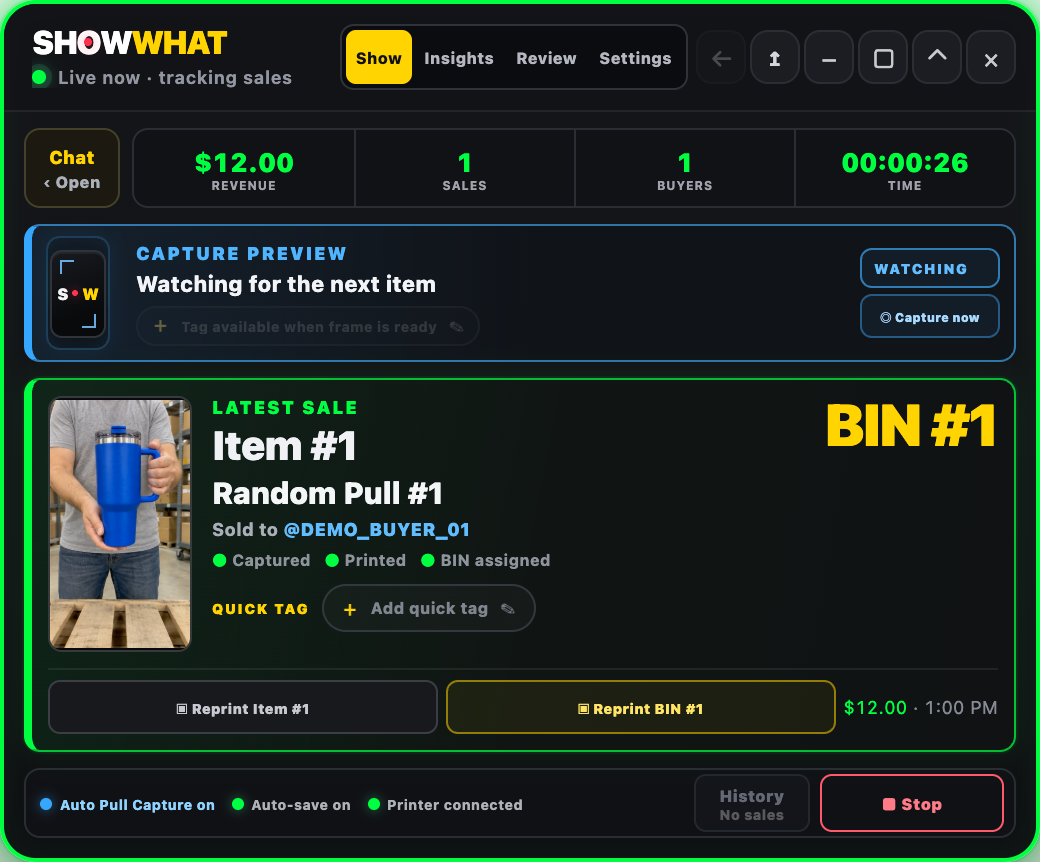
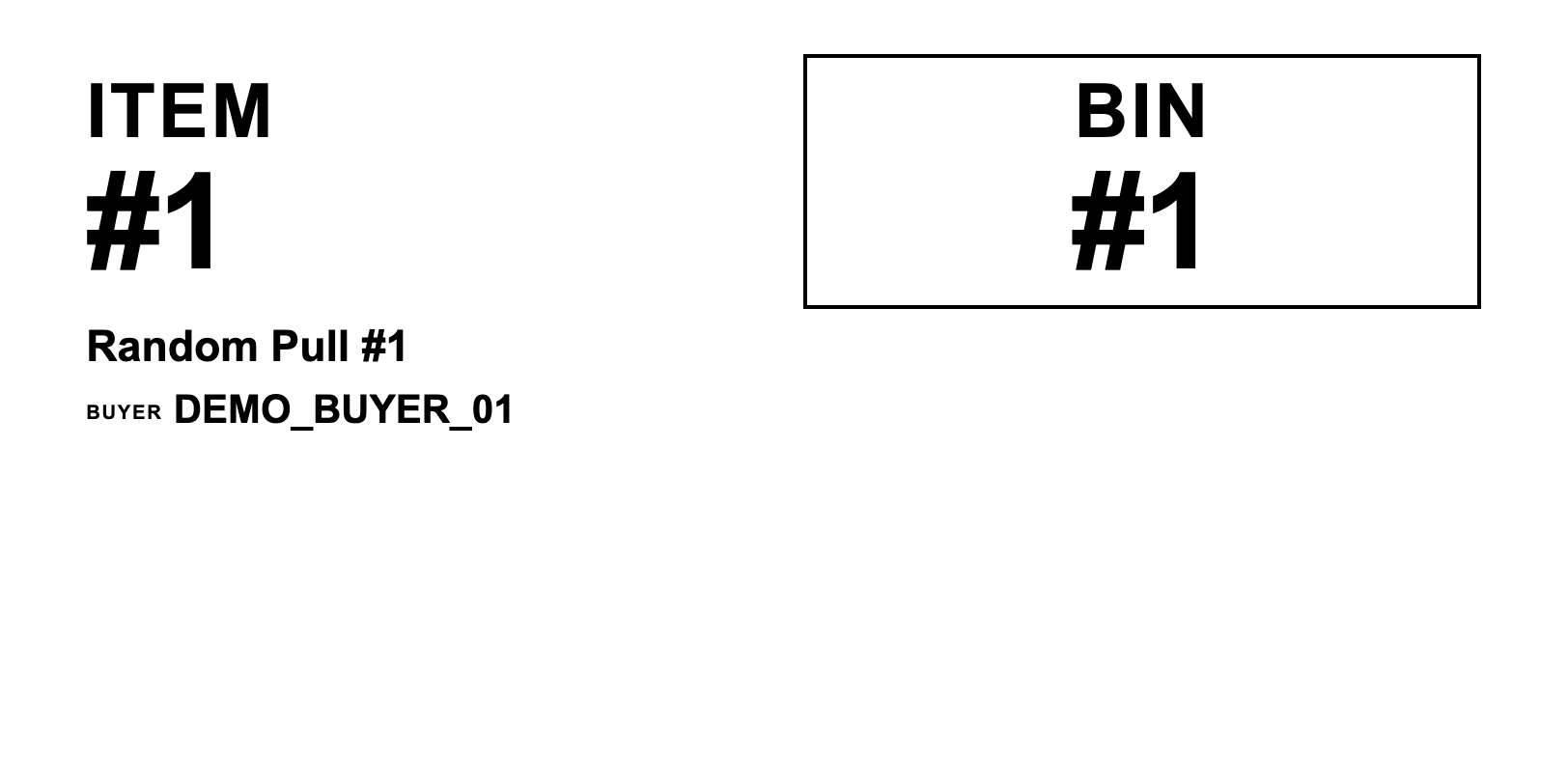
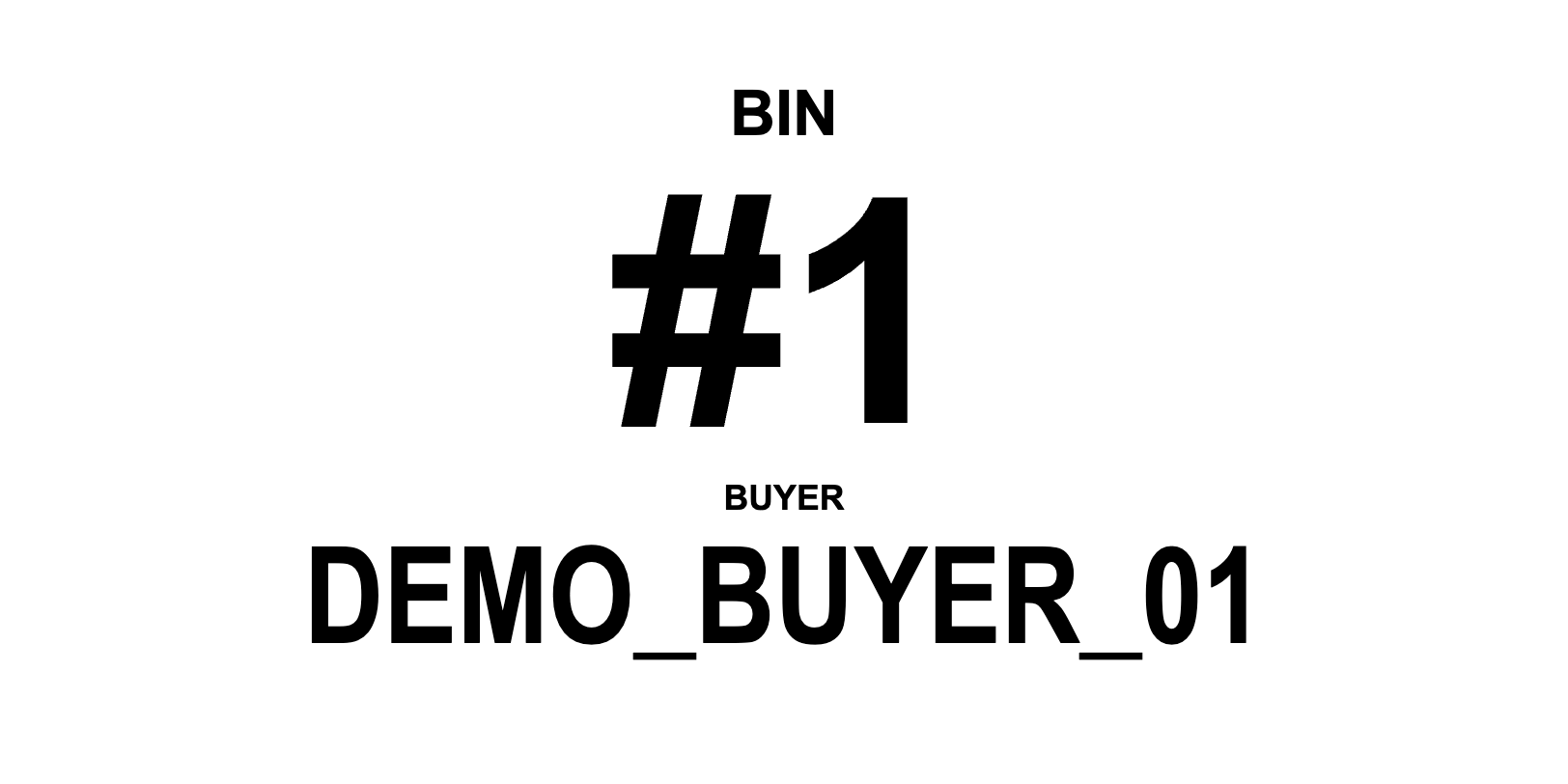
Sold. That photo stays with the winner.Item #1, its captured photo and its buyer are assigned to BIN #1.
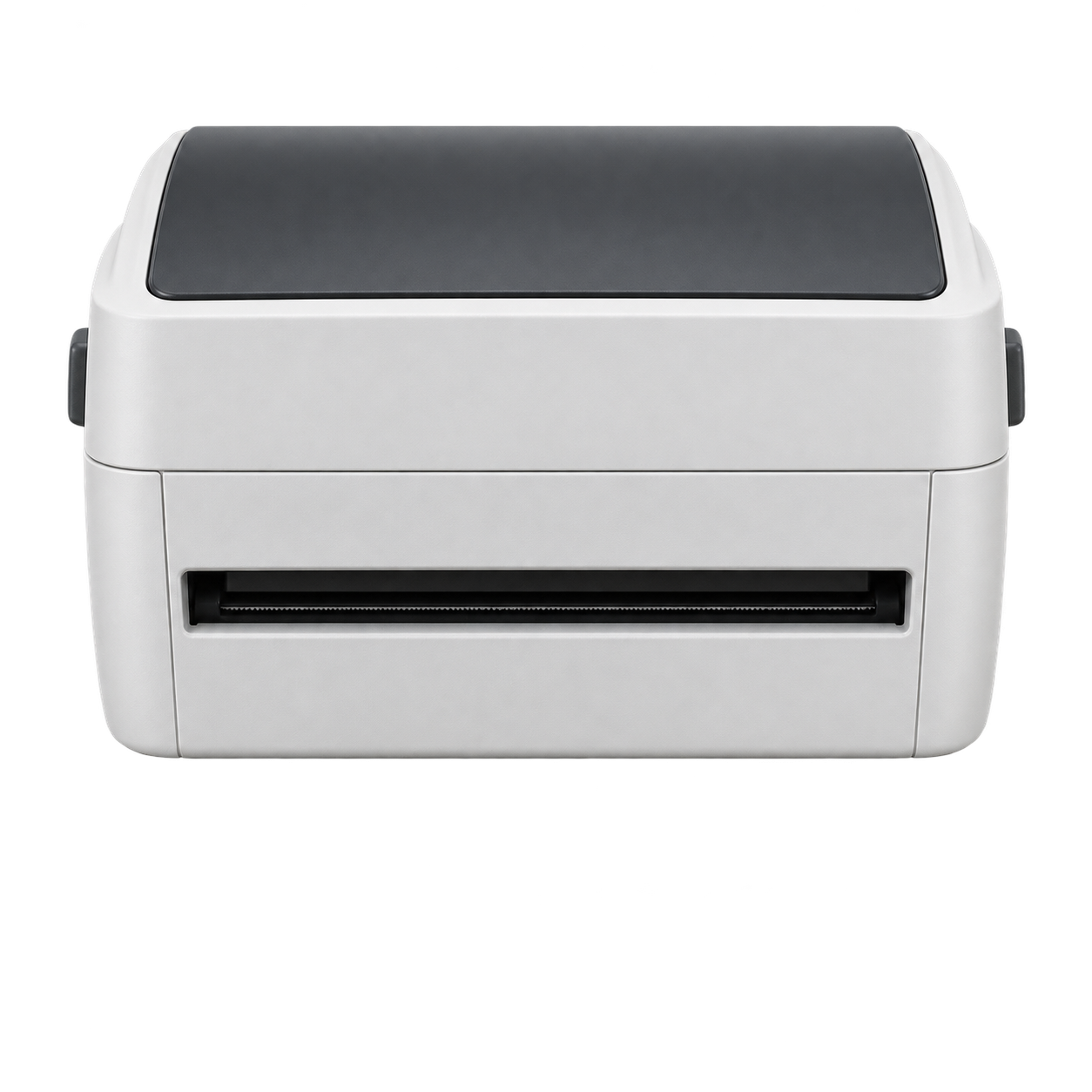
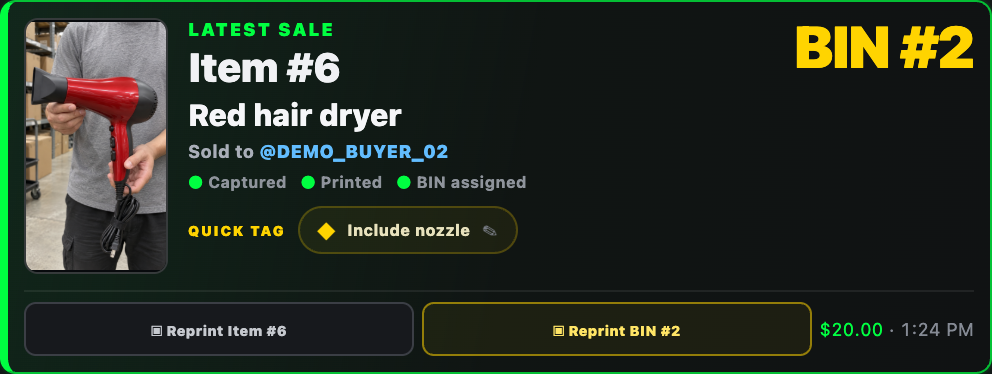
The right labels. Printed automatically.A BIN label for the new buyer, then an item label for this sale.
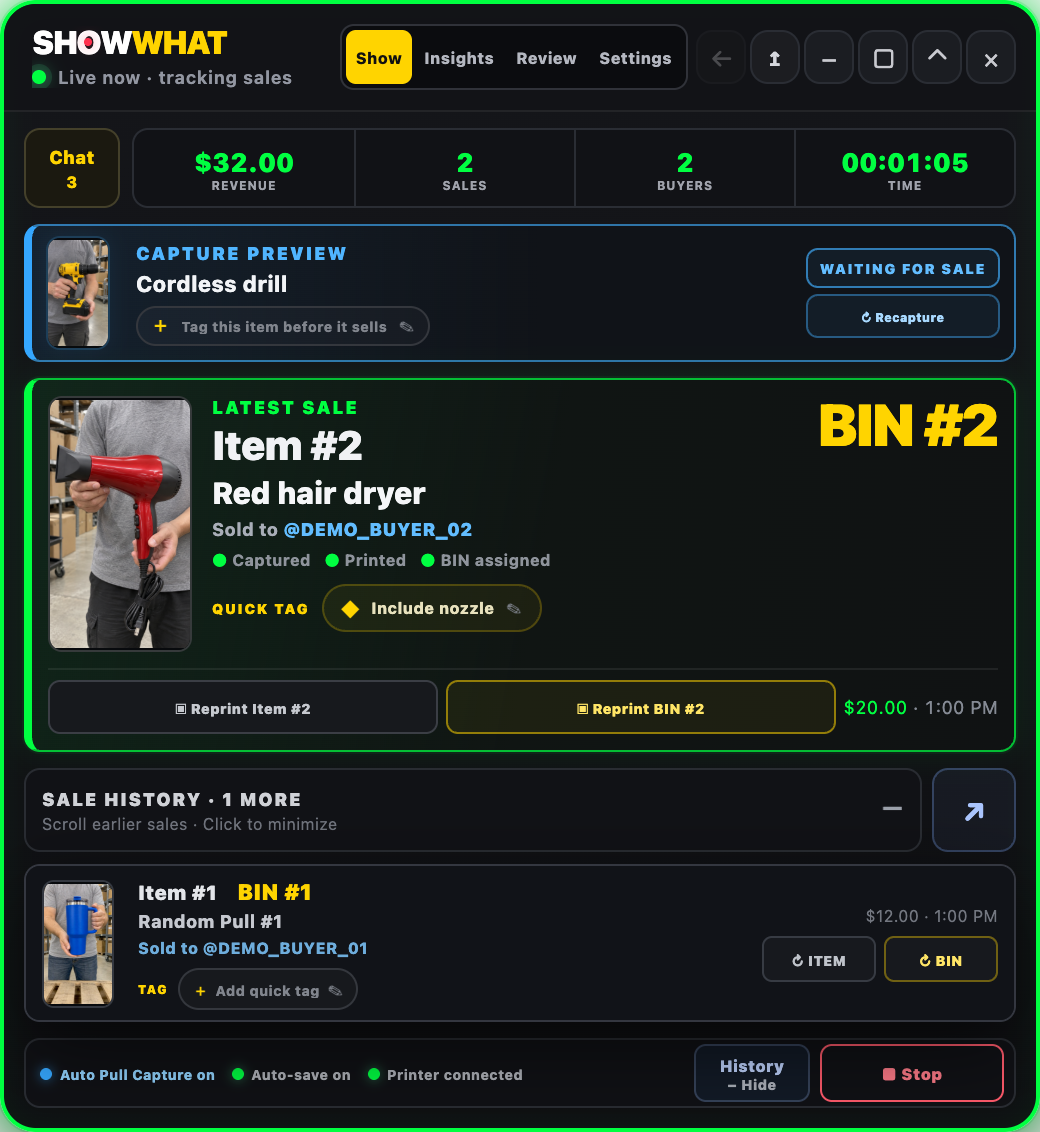
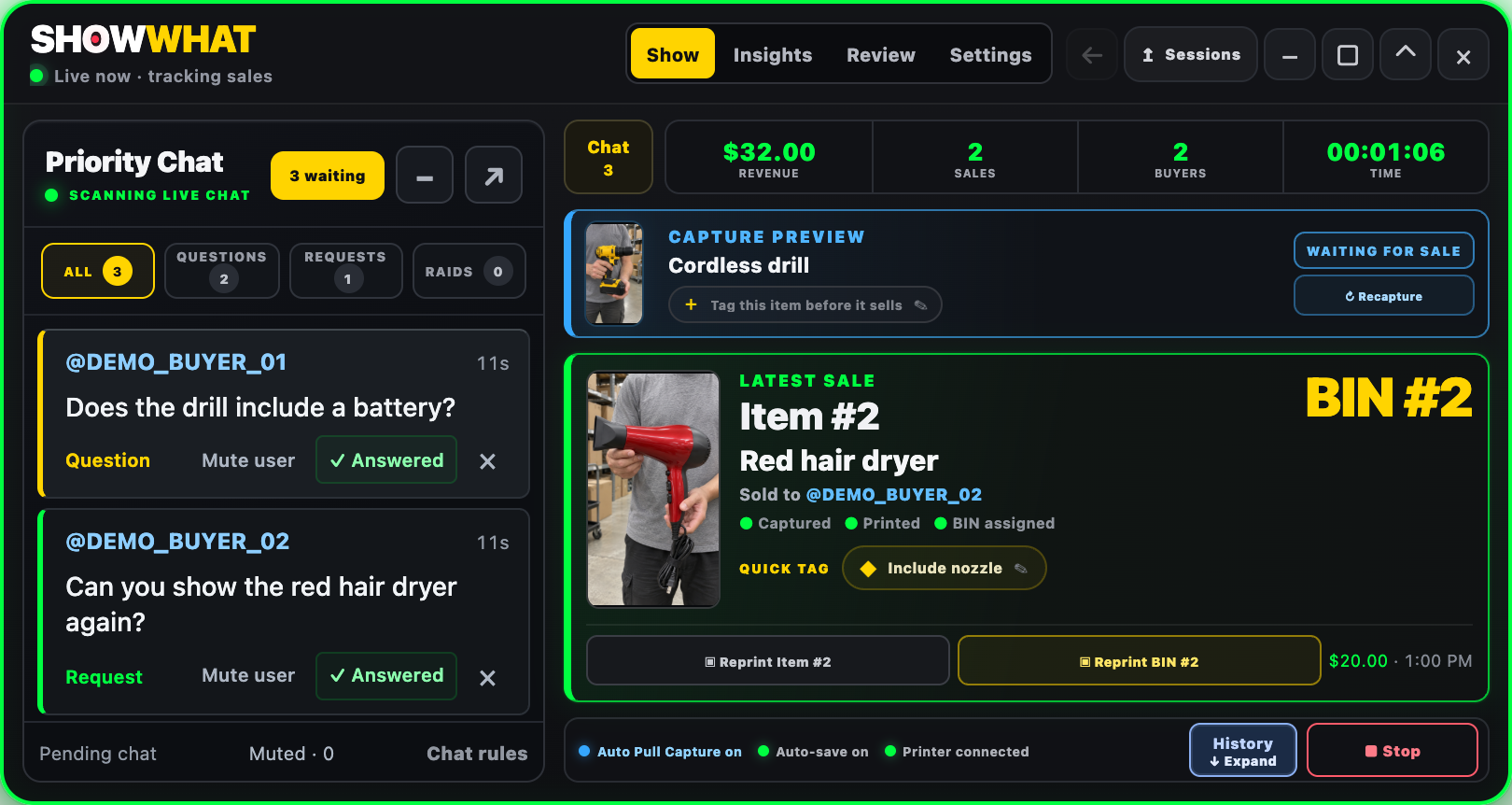
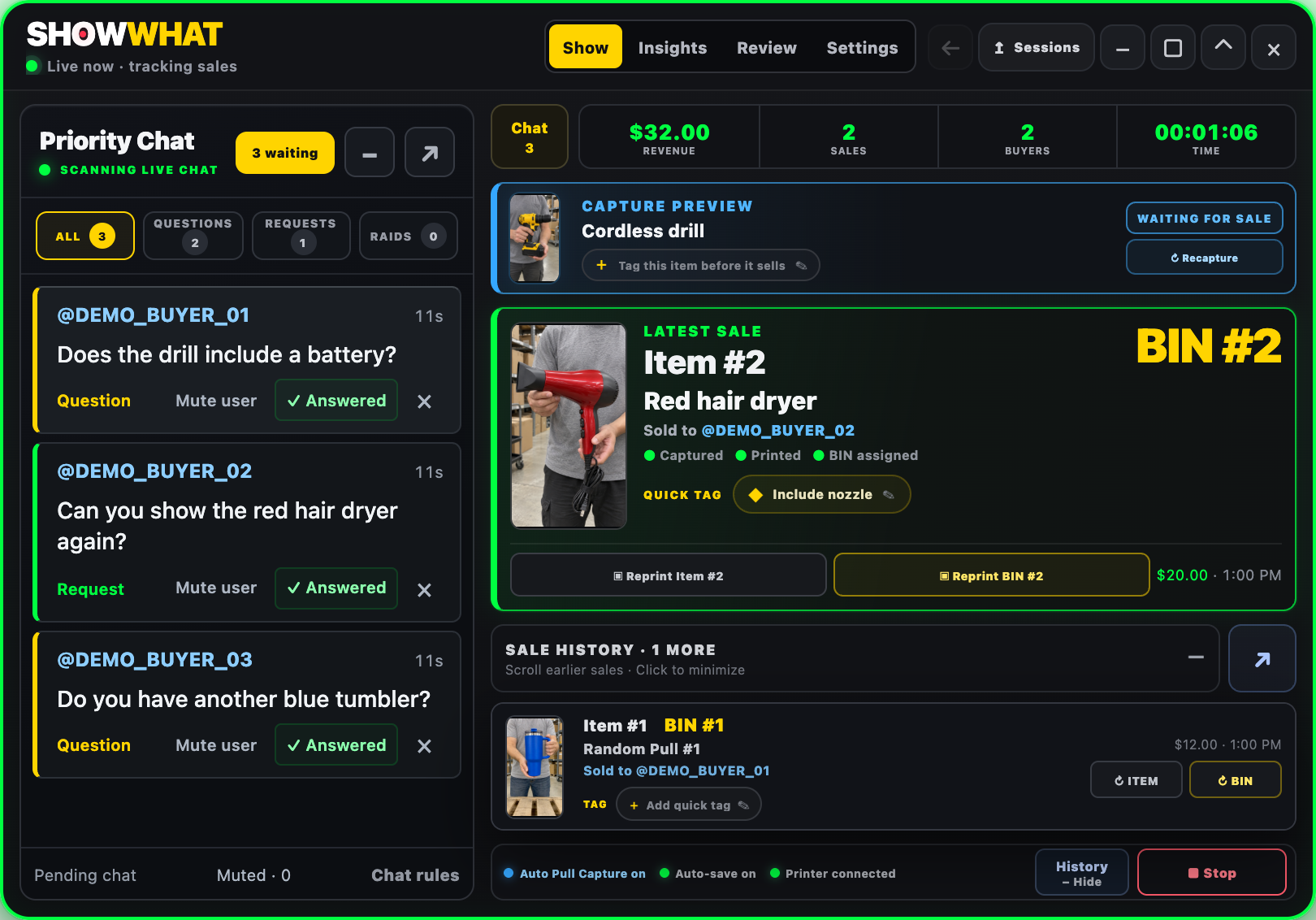
The next sale is Item #2.The hair dryer is the latest sale. Open history to find your captured Item #1.
Minimize history. Keep the latest sale.The app folds back up without losing any recorded sales.
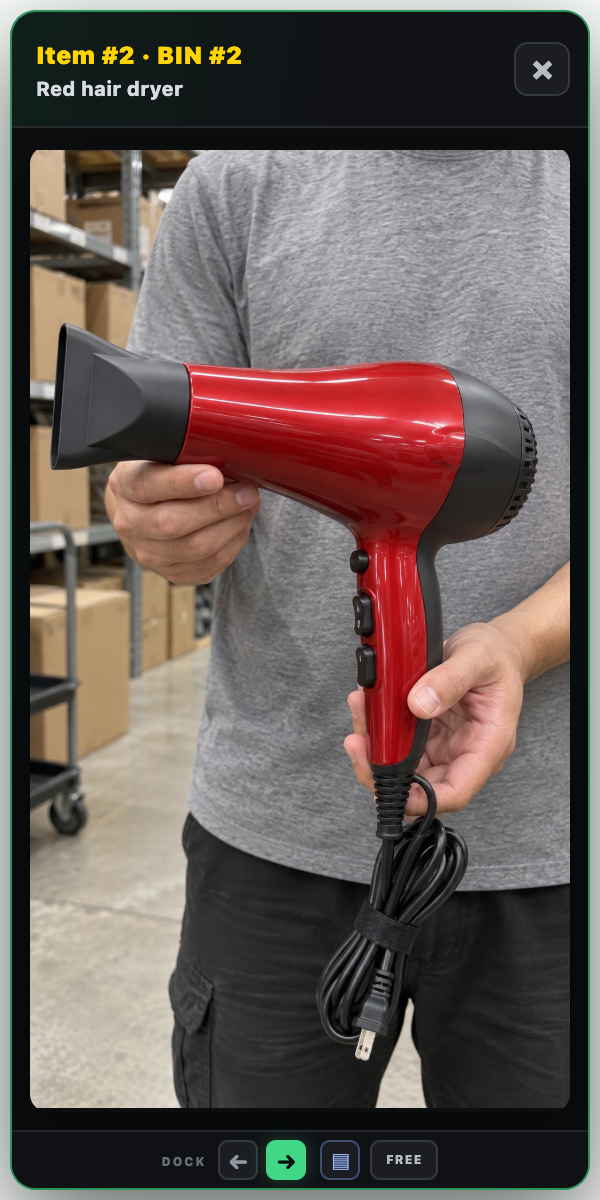
Click a thumbnail. See the whole item.The full portrait opens beside its sale, with its item number and BIN.
Close the image when you’re done.The saved capture stays attached to the sale.
Bring important chat into view.Read questions and requests, mark them answered, or mute a user.
Tuck chat away. Keep selling.Pending questions stay saved when you minimize the chat panel.
Everything in view, together.Sales history below. Priority Chat on the left. The full capture on the right.
Back to compact. Nothing lost.All three panels fold away together. Your sales, captures and pending chat stay saved.

 A place for every purchase ↗